 TradeMann
Documentation
Everything you need to build, test, deploy and monitor a rule-based trading strategy - no code required.
Popular Connect a broker Indicators Kill switch Troubleshooting
1. Signing in with your demat account
Your broker account is your TradeMann login - the only way to create an account or sign in. There is no email, password, emailed code or Google sign-in. Create account once, with your broker's API details: TradeMann connects to the broker for you (including its 2-step login) and fetches your name, email and mobile number from the broker straight away. From then on Sign in with your broker username and password and the broker's own 2-step check. One user is exactly one broker account. It works with m.Stock, Angel One, Zerodha, Upstox and Groww.
- Create your account with your broker's API details (below).
- Subscribe to a plan that allows real trading - Starter and up (skip this to build and paper-test on Free first).
- Open Profile and press Enable live trading - this is the step that actually lets TradeMann place real orders on your broker.
- Add the trading IP it gives you to your broker's allowed-IP list, then connect your broker on the Brokers page.
- Build a strategy, test it on paper first, then deploy it to your real broker connection.
Before you start
- An active trading / demat account with one of the five brokers.
- For Create account: that broker's API key (and secret / TOTP secret, depending on the broker). Each broker's step-by-step guide is under Connecting a broker - do that part first, it takes a few minutes. You only ever enter these once.
- Access to your registered mobile (m.Stock sends a one-time code) and, for Angel One, the email address Angel One has on file (TradeMann emails a code there).
Create your account (the first time)
Open the home page and click Get started - it opens the Create account tab (or open Sign in and switch to it).
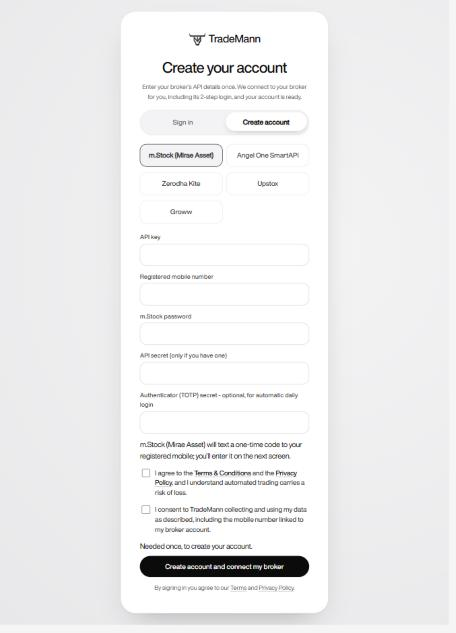
- Create account tab (Sign in is the other one).
- Choose your broker. The fields underneath change with it.
- Enter the API details from the table below. They are used to connect to your broker and are stored encrypted.
- Tick both boxes: the Terms & Conditions / Privacy Policy, and consent to TradeMann using your data - including the mobile number linked to your broker account, which is how we identify you.
- Click Create account and connect my broker. TradeMann logs in to your broker for you, including its 2-step check (below).
| Broker | You enter | The 2-step check, done for you |
|---|---|---|
| m.Stock | API key, registered mobile number, m.Stock password (API secret only if you have one) | m.Stock texts a one-time code to your mobile; you type it on the next screen. |
| Angel One | SmartAPI key, client code, MPIN, TOTP secret | Automatic - TradeMann generates the authenticator code from your TOTP secret. Nothing more to do. |
| Zerodha | Kite API key and secret | You log in (password + 2-step code) on Zerodha's own page, then are sent back to TradeMann automatically. |
| Upstox | Upstox API key and secret | You log in on Upstox's own page, then are sent back to TradeMann automatically. |
| Groww | TOTP token, TOTP secret | Automatic - TradeMann generates the authenticator code from your TOTP secret. Nothing more to do. |
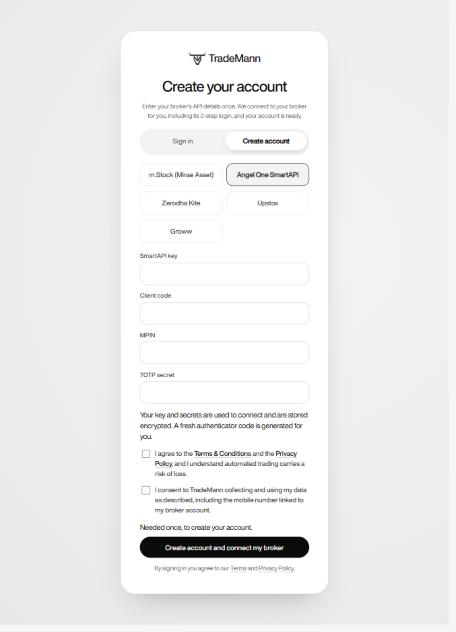
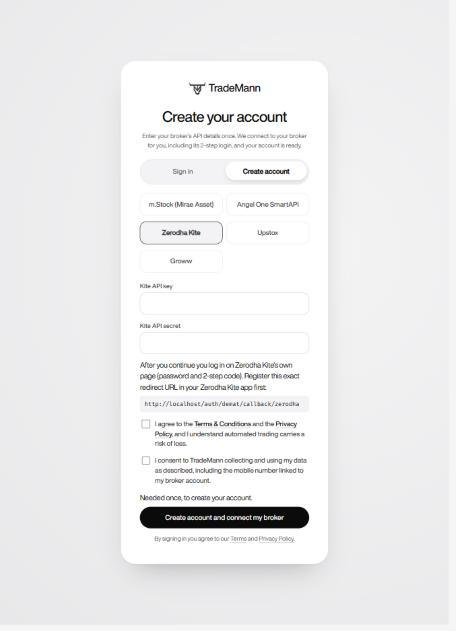
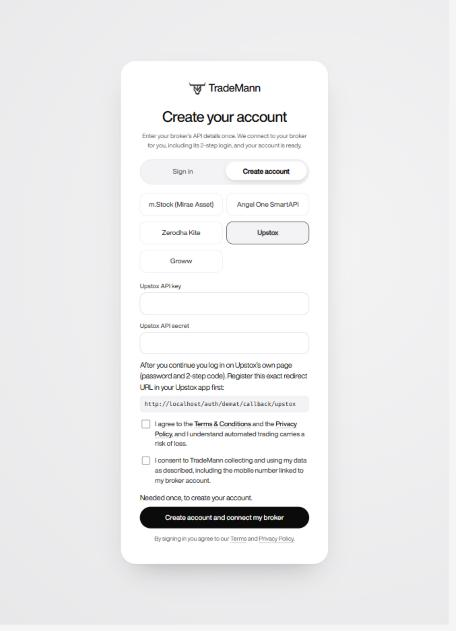
When it finishes, your TradeMann account exists and is signed in, your broker is already connected, and you start on the Dashboard. The account is identified by your broker account id (Client ID).
Your details come from your broker
Right after the account is created TradeMann asks the broker who you are and fills in your profile - you never type it:
- Name, mobile number and email (where the broker has them on file), plus extras such as the exchanges and products enabled on your account.
- Email: Angel One, Zerodha and Upstox share it, so your account uses it (welcome email, payment receipts, support replies). m.Stock's and Groww's APIs do not share an email (nor a mobile number, for Groww), so those accounts keep a private placeholder address (<broker>-<id>@demat.trademan.local) that mail is never sent to. An email that already belongs to another TradeMann user is never taken over.
- They are refreshed every time you sign in and shown, read-only, under Profile → Your broker profile with when they were last synced. They are never edited by hand, and credentials are never part of them.
A half-finished login is kept only in your own browser session, encrypted, and is dropped after 10 minutes or as soon as you finish. Nothing is saved to the database until your broker has accepted the login. If the broker account already has a TradeMann account, Create account stops with "already has a TradeMann account - use Sign in instead".
Sign in (every time after)
Open Sign in, pick your broker and sign in the same way you do on that broker's own portal - the same details, in the same order, with the same 2-step check. You do not enter the API key again: the details you saved when you created the account are used to log in to your broker for you.
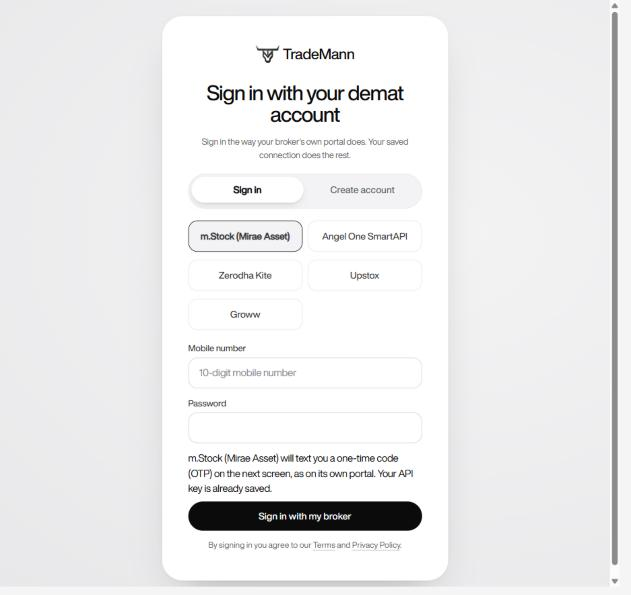
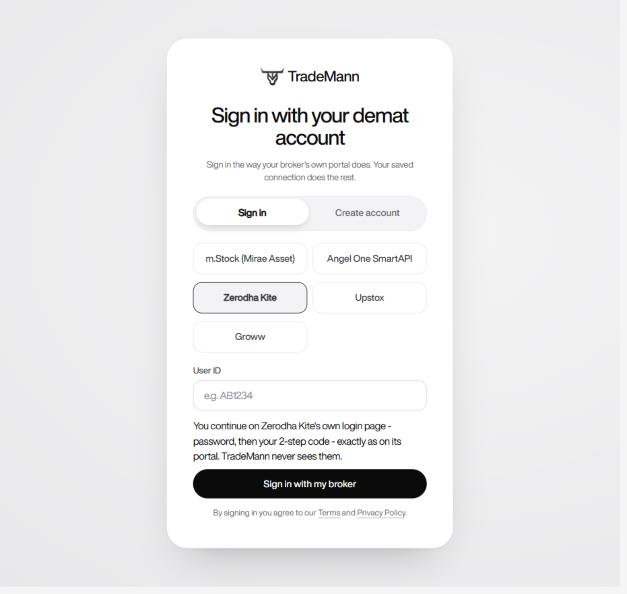
- Sign in tab.
- Choose your broker.
- What the broker's portal asks (table below) - for m.Stock that is your mobile number and password.
- Click Sign in with my broker, then finish the broker's own 2-step check.
| Broker | Its portal's sign-in, step by step | In TradeMann |
|---|---|---|
| m.Stock | Mobile number + password, then an OTP sent to your mobile | Same: enter both on one screen, then the code screen - which shows the last digits of the number it went to, asks for the OTP only and has Resend OTP. |
| Angel One | Client ID or mobile number, then your MPIN, then an OTP | Same, one thing at a time: Step 1 client ID or mobile number, Step 2 MPIN (with Back and Continue; Enter works as Continue), then Check your email: TradeMann emails a 6-digit OTP to the address Angel One has on file for you (10 minutes, Resend code available). No redirect URL is involved. |
| Zerodha | User ID and password, then your 2-step code (TOTP) on Kite's page | You give your User ID here, then continue on Kite's own login page for the password and 2-step code, and come back signed in. TradeMann never sees them. |
| Upstox | Mobile number, then an OTP, then your PIN, on Upstox's page | You give your mobile number here, then continue on Upstox's own login page for the OTP and PIN, and come back signed in. |
| Groww | Client ID (UCC), then the 6-digit authenticator code | Enter both on one screen - no separate code step, since the authenticator code is the 2-step check. |
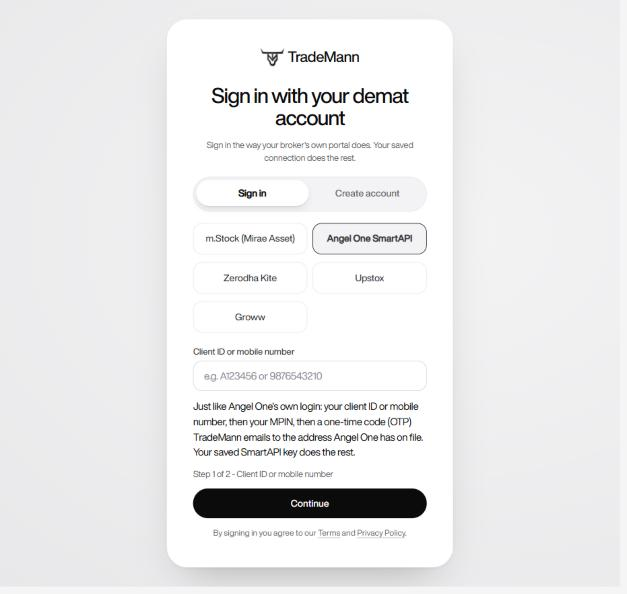
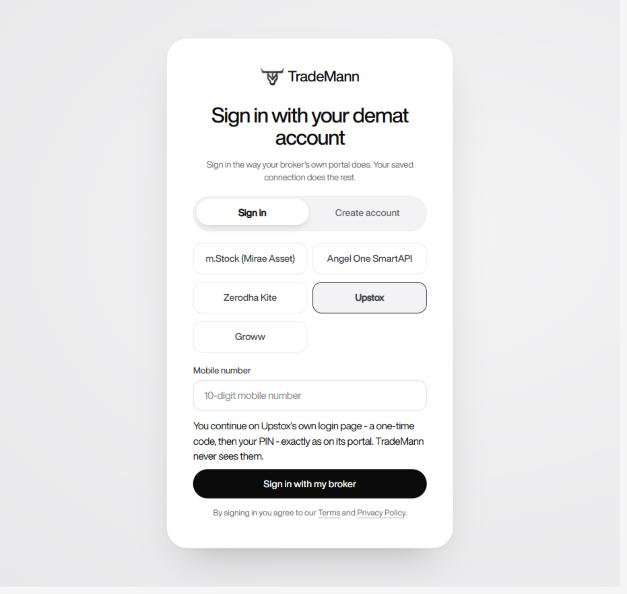
How your account is found. TradeMann matches what you type with the details your broker gave it when the account was created: the registered mobile number (write it however you like: 98765 43210, +91 98765-43210) or your broker's own client / user ID. If your broker had no mobile number on file, or two accounts share one, type the client ID in the same box.
- The broker's 2-step check is your 2-step check. m.Stock: the one-time code (OTP) sent to your mobile; Angel One: the code TradeMann emails you after your MPIN; Zerodha and Upstox: the 2-step code on their own login page; Groww: the current code from the same authenticator app you enrolled with. TradeMann adds nothing of its own. The broker decides - you are only signed in once your broker accepts the login - a wrong password is refused by the broker and you see its reason. If the login turns out to be for a different broker account than the one you named, it is refused.
- No account yet? "No TradeMann account was found for that account. Create your account first." - switch to the Create account tab.
- Signing in refreshes your broker session as well. For m.Stock (midnight IST), Zerodha (6 AM IST) and Upstox (3:30 AM IST), whose sessions expire daily, signing in each morning is the re-authentication; you do not need to do it again on the Brokers page. If you change your broker password, signing in with the new one saves it.
- Your TradeMann session lasts for the rest of the day (IST) you signed in on - the first page you open after midnight signs you out, and you sign in again. This is purely a browser-session timeout: it never touches a deployed strategy, which keeps running, being monitored and placing orders on its own schedule whether or not you are signed in.
2. Your profile & live trading
Click your name at the bottom of the sidebar any time to open Your profile. It holds your plan, live trading, Terms & Privacy and referral link.
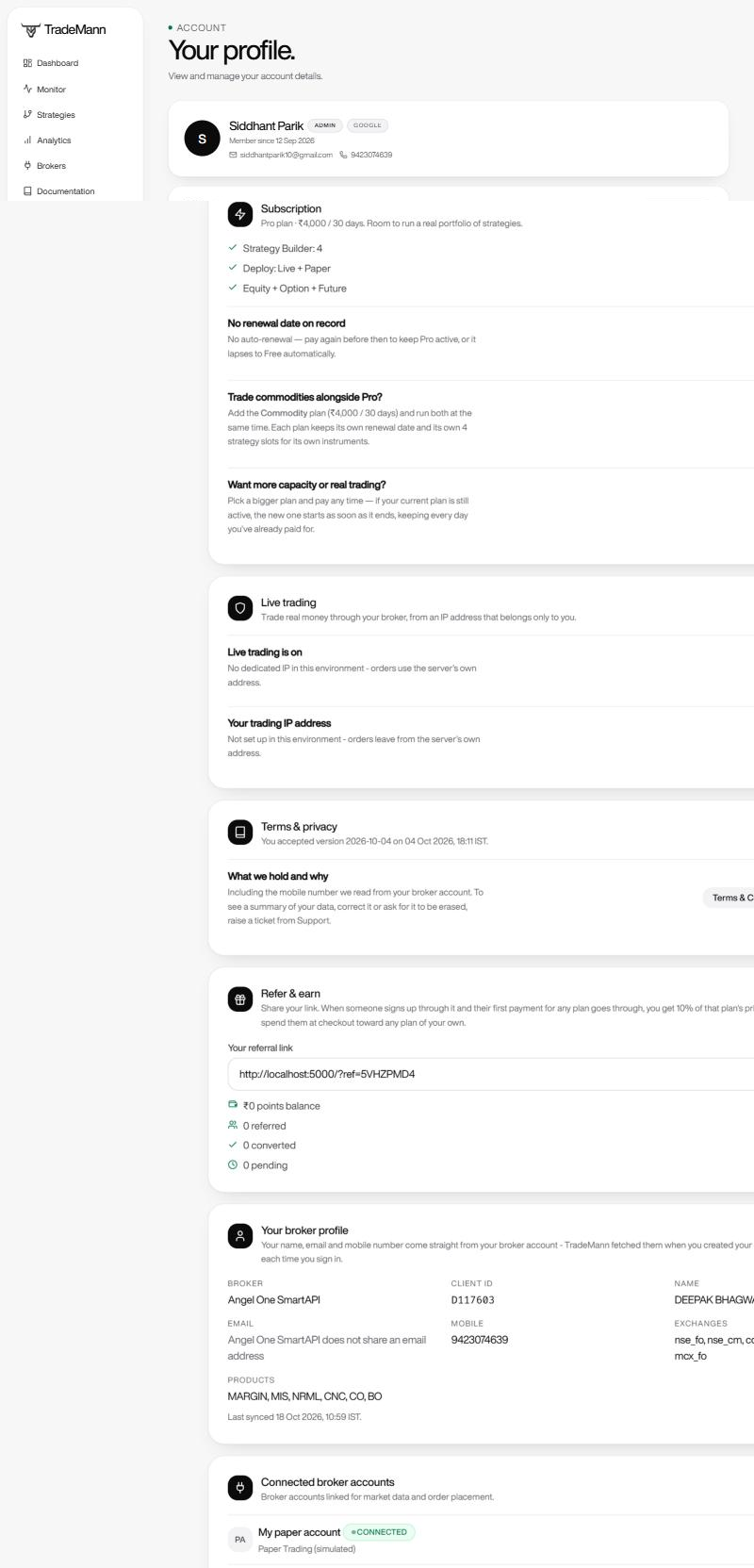
- Subscription - your plan, what it includes, and when access ends. Renew or switch plan here. See Plans & pricing.
- Add Commodity plan (or Add Pro) - hold Pro and Commodity at the same time, each with its own renewal date and strategy slots.
- Live trading - the switch that unlocks real-money trading and shows your private trading IP address (below).
- Terms & privacy - the version you accepted and when. You are asked again if the text changes in a way that matters.
- Your broker profile - your name, email, mobile number and Client ID, fetched from your broker (see Your details come from your broker).
- Your broker profile - your name, email, mobile number, Client ID and the exchanges / products on your account, fetched from your broker and refreshed each time you sign in (see Your details come from your broker). It is read-only: there is no TradeMann password or email to manage.
- Refer & earn - copy your referral link. When someone signs up through it and their first payment for any plan goes through, you get 10% of that plan's price as referral points, which you can spend at checkout.
- Connected brokers - a read-only summary; connect, disconnect and re-authenticate on the Brokers page. For m.Stock, if automatic daily login is on (a saved TOTP secret), a Remove TOTP button turns it off right here - the same action as Turn off automatic login on the Brokers page, without leaving your profile.
- Sign-in - a note of which broker account you sign in with and which 2-step check your broker uses; it is verified by the broker every time.
Turning on live trading and your trading IP
Brokers only accept orders from an IP address you have whitelisted. Instead of one shared server address, each live-trading user can have their own private IP.
- On a plan that allows real trading (Starter and up), open Profile → Live trading and press Enable live trading. The Free plan is for building and testing strategies only - deploying, even to paper, needs a paid plan.
- TradeMann sets up a private IP address for your account. This takes a few minutes; the card updates by itself ("Creating your IP address...", then "finishing setup").
- When Your trading IP address appears, press Copy and add it to your broker's allowed-IP list (m.Stock calls it the Primary IP on your TypeA API key; Zerodha, Upstox and Angel One have an IP field on the app).
- Connect or sign in with your broker on the Brokers page. From now on every call made for your broker connection - login, orders, positions, funds, candles - goes out from that one IP.
3. Plans & pricing
Build and test for free. Subscribe to deploy - paper or real - and get more strategy slots when you are ready - every plan uses the same builder and engine.
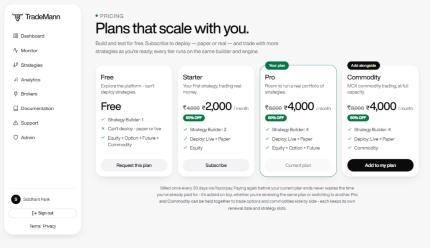
| Plan | Price / 30 days | Strategies | Real money | Instruments |
|---|---|---|---|---|
| Free | ₹0 | 1 (build & test only) | No - can't deploy | All kinds, build & test only |
| Starter | ₹2,000 | 2 | Yes | Equity |
| Pro | ₹4,000 | 4 | Yes | Equity, options, futures |
| Commodity | ₹8,000 | 4 | Yes | MCX commodities only - Angel One, Zerodha, Upstox |
Prices shown are the standard list prices; the live Pricing page is always the source of truth and may show a discount.
- Billed once every 30 days through Razorpay - there is no auto-renewal. Pay again before the plan ends and the new period is added on top, so you never lose days you have already paid for; a plan that ends drops back to Free.
- Pro + Commodity together. Each has its own price, 30-day cycle and strategy slots (Pro's for stocks, options and futures; Commodity's for MCX). If one ends, the other carries on.
- Strategy slots. The Strategies page shows how many you have used (for example 4 of 4); when it is full you get a Limit reached tile and need to delete a strategy or add a plan.
- Paper Trading needs a paid plan, the same as real trading - the Free plan builds and tests strategies but cannot deploy either kind.
4. Connecting a broker
Go to Brokers → Connect a new account. Every broker plugs into the exact same strategy builder and engine. Each broker below has its own step-by-step guide to getting API credentials; picking a broker on the connect form also shows a direct link to its guide.
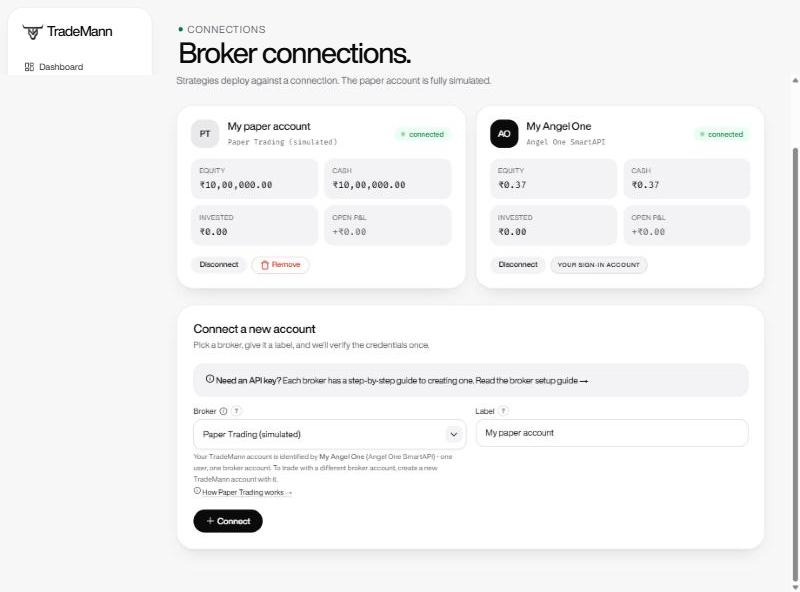
- A connected account - equity, cash, invested and open P&L, straight from the broker.
- Disconnect pauses the connection; Remove deletes it (you can't remove a broker that has a running strategy).
- Need an API key? opens the step-by-step guide for the broker you picked (the same guides as below).
- Choose the broker and give it a label.
- Press Connect. m.Stock, Zerodha and Upstox then ask you to finish the login (code or broker page).
If you signed in with your demat account, that broker is already connected - you only come here to add Paper Trading or to switch to a different broker.
| Broker | API cost | You will need | Re-login | Where to create the key |
|---|---|---|---|---|
| Angel One SmartAPI | Free | API key, client code, MPIN, TOTP secret | Automatic | smartapi.angelone.in |
| m.Stock (Mirae Asset) | Free | TypeA API key, username / mobile, password (API secret and authenticator TOTP secret optional) | Automatic with your TOTP secret; otherwise daily by OTP (midnight IST) | trade.mstock.com |
| Zerodha Kite Connect | Paid (monthly, billed by Zerodha) | API key, API secret | Daily (6 AM IST), by you - Zerodha does not allow automated login | developers.kite.trade |
| Upstox | Free | Client ID (API key), client secret | Daily (3:30 AM IST): tap Approve in the Upstox app / WhatsApp (Upstox cannot let an app log you in by itself) | account.upstox.com/developer/apps |
| Groww | Free | TOTP token, TOTP secret | Automatic with your TOTP secret - there is no manual alternative for this key type | groww.in/trade-api/api-keys |
Broker portals change their menus and wording from time to time - if a button isn't exactly where a step says, look for the closest match or check the broker's own API documentation.
Paper Trading (simulated)
- No credentials needed - just a label. You start with virtual cash (₹10,00,000 by default).
- Market data comes from a deterministic synthetic feed (or a real feed you also have connected - see Market hours & data).
- Orders fill instantly at the reference price; positions and P&L are tracked exactly like a real account.
- Options and futures are supported on paper too, via a synthetic chain (see Trading options & futures).
Angel One SmartAPI
Before you start: an active Angel One trading account, access to the registered mobile/email for OTPs, and an authenticator app (Google Authenticator, Authy or similar) on your phone.
Getting your API key:
- You need an active Angel One trading account first. Then go to smartapi.angelone.in and sign up for a SmartAPI developer account (your Angel One client ID isn't required for this step).
- Once signed up, log in and go to My Profile → Create an app (or use the "Create an app" prompt shown right after signup).
- Pick the Trading APIs type (not "Market Feeds" only - you need order placement), give the app any name, and fill in a redirect / postback URL - any placeholder works, TradeMann doesn't use SmartAPI's OAuth redirect, only the API key.
- Click Create App. Your dashboard now shows the app with its API Key - copy that (you can ignore the accompanying secret key; TradeMann's Angel One login doesn't need it).
- Separately, enable the authenticator / TOTP on your Angel One trading profile (this is on the main Angel One app/site, not the SmartAPI developer portal) and note the base32 TOTP secret - the long string shown behind the QR code when you enable it, not the 6-digit code the authenticator app displays afterward.
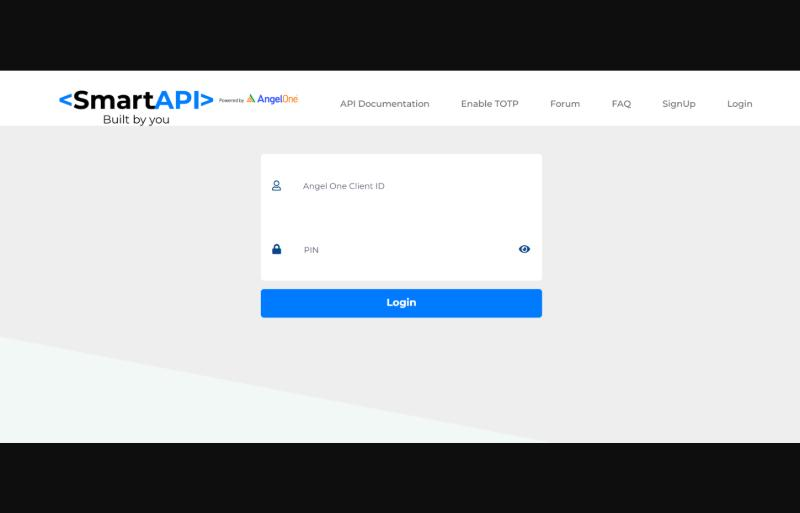
Screenshot shows Angel One's own website (taken from Trendlyne's Angel One login guide, no account details entered). Angel One may change its pages - if a button has moved, look for Enable TOTP in the SmartAPI site's top menu.
Connecting it in TradeMann:
- Enter the API key, your Angel One client code, your MPIN, and the TOTP secret.
- Login is verified once on save, then re-authenticated automatically in the background (a fresh TOTP is generated from the secret each time) - no daily manual step.
What each field is:
- API key - from your SmartAPI app's dashboard (step above).
- Client code - your Angel One client ID, a letter followed by digits (for example A123456).
- MPIN - the numeric PIN you use to log in to the Angel One app, not your old password.
- TOTP secret - the long base32 text shown when you enable the authenticator, not the 6-digit code. If you only have the QR code, scan it with a QR reader to see the secret= value.
If it fails:
- "Angel One login rejected" - one of client code, MPIN or TOTP secret is wrong. Re-check each; the secret must be the long text, not a 6-digit code.
- "Invalid TOTP secret" - the secret has a typo or extra characters; spaces are ignored but nothing else is.
- Orders rejected for an IP reason - register the server's outbound IP on your SmartAPI app if it offers an IP field (see the static IP note above).
m.Stock (Mirae Asset)
Before you start: an active m.Stock trading account, your login username (usually your registered mobile number) and password, and access to that mobile for the OTP.
Getting your API key:
- You need an active m.Stock trading account first - sign up at trade.mstock.com if you don't have one.
- Log in there, then open the Trading APIs / API access section of your account (usually under your profile or settings menu).
- Generate a TypeA API key. API access is free - no separate developer subscription. Copy the API key it gives you.
- Note the IP address(es) the portal asks you to register for this key now, while you're there - see the callout below, this is the step that causes the most connection problems later.
Turn on the authenticator (TOTP) at m.Stock - so TradeMann can log in every morning
m.Stock's login ends at midnight IST. If you give TradeMann your m.Stock TOTP (the secret behind the authenticator codes), it makes the 6-digit code itself and reconnects every morning - no OTP to type. You do this once, on a computer, at m.Stock's own website:
- Log in to trade.mstock.com. Use Login with Credentials (or scan the QR
code with the m.Stock app).
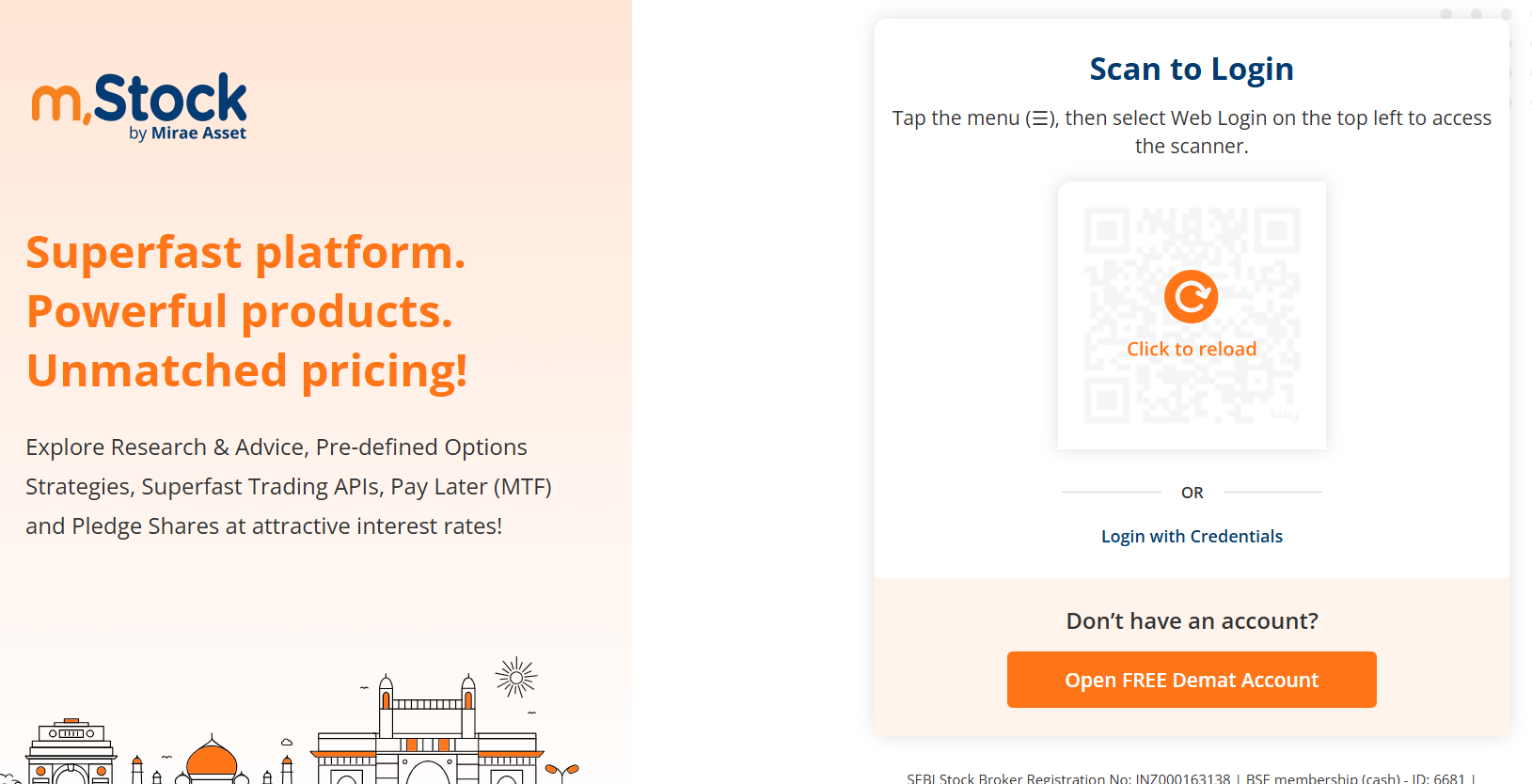
m.Stock's login page. - Login with Credentials - or scan the QR code above it with the m.Stock mobile app.
- Click the hamburger icon (the three lines, top left) to open the menu.
- Go to Trading APIs - it is the first tile under Key Products in that menu.
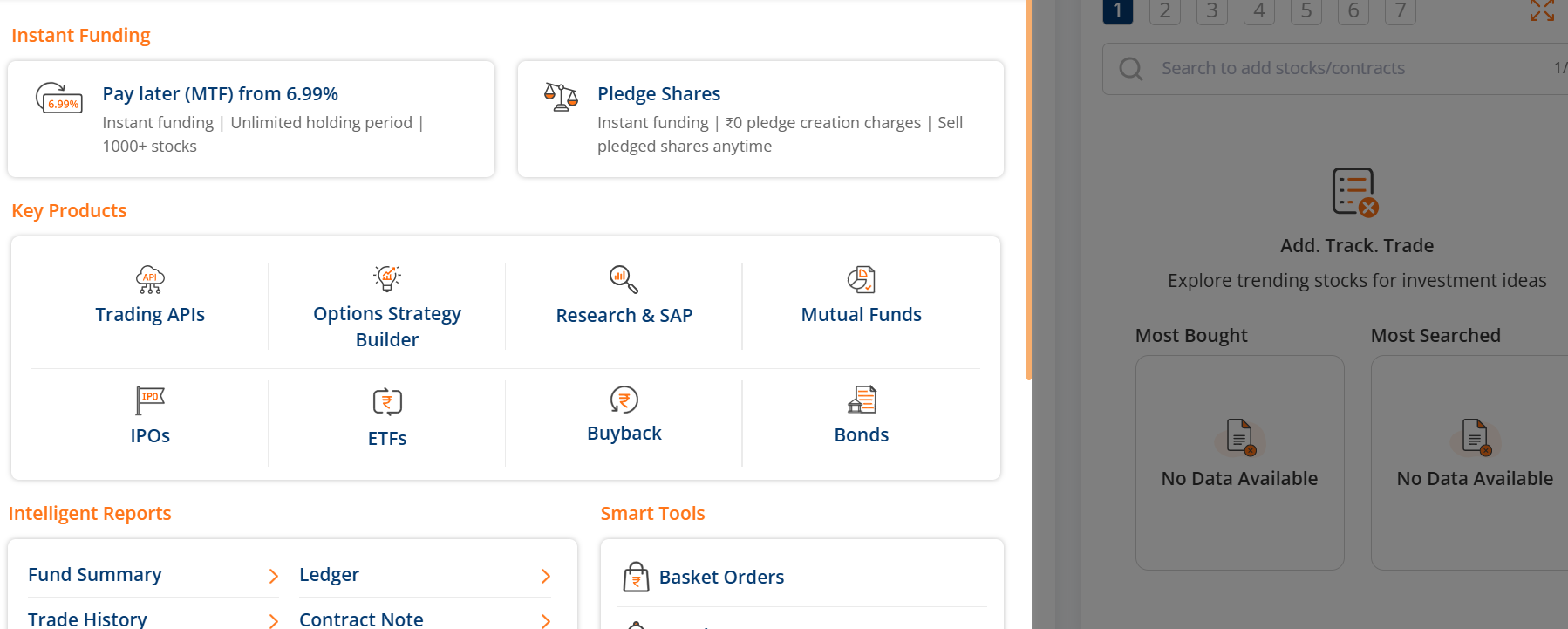
The menu, opened with the hamburger icon. - Trading APIs - the first tile under Key Products.
- Click Generate TOTP. On the Trading APIs page it is the button beside + Generate New API Key, at the top of List of API Keys.
(Once the authenticator is on, that same button reads Disable TOTP - as in the picture.)
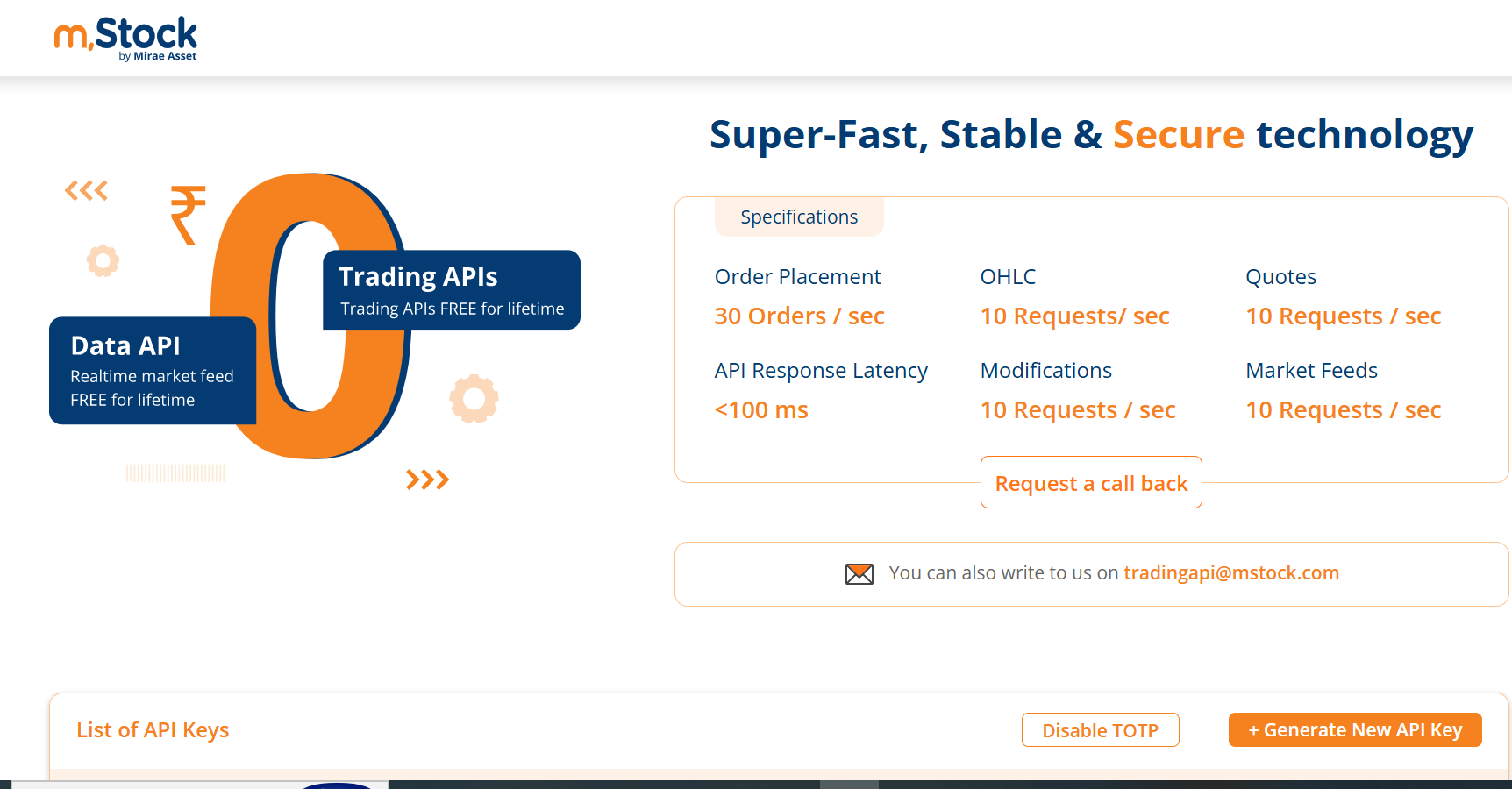
The Trading APIs page. - The TOTP button - Generate TOTP to turn the authenticator on; it reads Disable TOTP once it is on.
- Copy the TOTP. It is the long secret text (letters and numbers) m.Stock shows - not a 6-digit code. Paste it into TradeMann under Profile → Connected broker accounts → Authenticator (TOTP) secret (it is listed there as Recommended when missing), or into TOTP secret when you connect m.Stock. From then on Re-authenticate needs no code and the morning notice goes away.
Screenshots show m.Stock's own website (taken from OpenAlgo's m.Stock guide, personal details removed). m.Stock may change its pages - if a button has moved, look for TOTP on the Trading APIs page.
Connecting it in TradeMann:
- Enter the API key, your username/mobile, and password. TradeMann calls m.Stock's login and, on success, an OTP is sent to your registered mobile.
- Choose SMS OTP or Authenticator app (if your account has app-based 2FA) on the verify screen and enter the code. Or skip the code entirely: if you saved your TOTP secret (the long text m.Stock shows when you turn the authenticator on) in the connect form, TradeMann logs in by itself.
- Your access token is stored encrypted and is valid until midnight IST.
What each field is:
- API key - the TypeA key from the m.Stock portal.
- Username / mobile - your m.Stock login id, which is your registered mobile number. TradeMann also uses it to fill in your contact number automatically.
- Password - your normal m.Stock login password. It is stored encrypted so the daily OTP login can be re-triggered.
- API secret (optional) - only if your key came with one; it is used to compute the session checksum.
The IP that matters is wherever the TradeMann server itself runs, not your own laptop or phone's internet connection - since the server is what actually calls m.Stock on your behalf. If you're running TradeMann locally on your own machine, that's your own connection's public IP (search "what is my ip", or run curl https://api.ipify.org); it can change any time your ISP reassigns it, a router restart being a common trigger. If you're using a version of TradeMann someone else is hosting for you, ask them for the server's outbound IP - re-checking your own connection's IP won't help.
To fix it: log in at trade.mstock.com, open your TypeA API key's settings, and update the Primary IP Address field to the correct value (a Secondary IP field, if shown, can usually be left blank or set the same). No restart needed on TradeMann's side - the very next engine check (within a few seconds) succeeds once m.Stock accepts the new IP.
Zerodha Kite Connect
Before you start: an active Zerodha trading account with two-factor login set up, a payment method for the monthly Kite Connect fee, and your Kite login (user ID, password and 2FA code).
Getting your API key:
- You need an active Zerodha trading account first. Then go to developers.kite.trade and log in with your regular Zerodha (Kite) credentials.
- Click Create new app. Unlike Angel One/m.Stock, a Kite Connect app is paid (a monthly subscription, billed by Zerodha) - there's no free tier for order placement access.
- Fill in an app name, pick Connect as the app type, and set a Redirect URL. If you're not sure what to put, leave it as whatever TradeMann's connect screen shows as its own callback address - TradeMann also works if you paste the login code back manually, so this field doesn't have to be exactly right.
- Once created, the app's dashboard shows its API key and API secret - copy both.
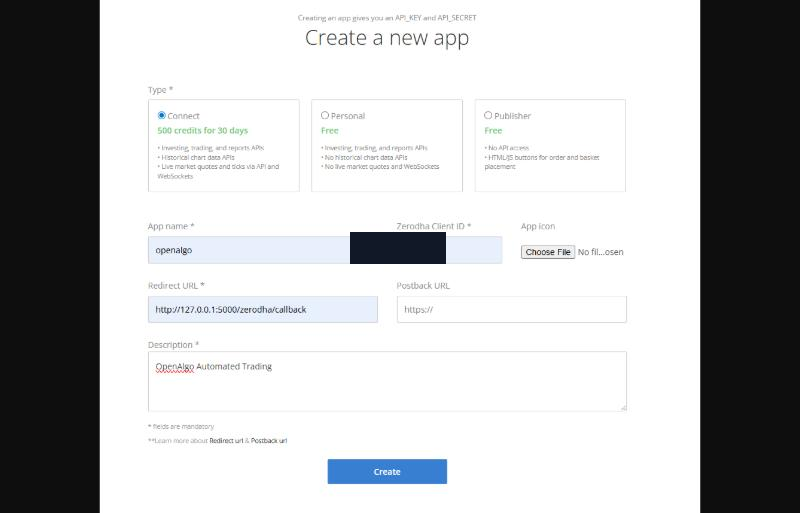
Screenshot shows Zerodha's own website (taken from OpenAlgo's Zerodha guide, personal details removed). Zerodha may change its pages - if a field has moved, look for Create new app on your Kite Connect dashboard.
Connecting it in TradeMann:
- Enter the API key and secret. Only set a redirect URL in TradeMann if your Kite Connect app already has one configured that isn't this server's own callback.
- On the next screen, click Log in with Zerodha - you authenticate directly on Zerodha's own page, your Zerodha password never passes through TradeMann. If the redirect reaches this server the login finishes automatically; otherwise copy the request_token out of the redirect URL and paste it back in.
If it fails:
- Invalid API key or checksum - the API secret doesn't match the key; copy both again from the app's dashboard.
- Redirect URL mismatch - the URL on your Kite app and the one used at login must be identical. Either match them, or paste the request_token back by hand.
- App not active - the monthly Kite Connect subscription must be paid; an expired one rejects logins and orders.
- Orders rejected for an IP reason - register the server's outbound IP on your Kite app if it offers an IP field (see the static IP note above).
Upstox
Before you start: an active Upstox trading account and your Upstox login (mobile number, PIN and OTP) to authorise the app.
Getting your API key:
- You need an active Upstox trading account first. Then go to account.upstox.com/developer/apps and log in with your regular Upstox credentials.
- Click New App. Upstox's API access is free.
- Give the app a name, and set a Redirect URI - as with Zerodha above, whatever TradeMann's connect screen shows as its own callback works, and it's not strictly required to match since pasting the code back manually also works.
- Once created, the app's details page shows its API Key (Client ID) and API Secret (Client Secret) - copy both.
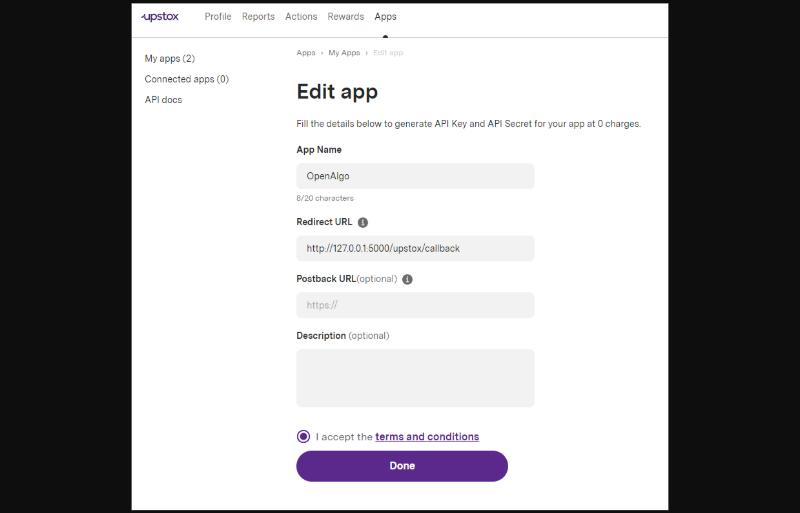
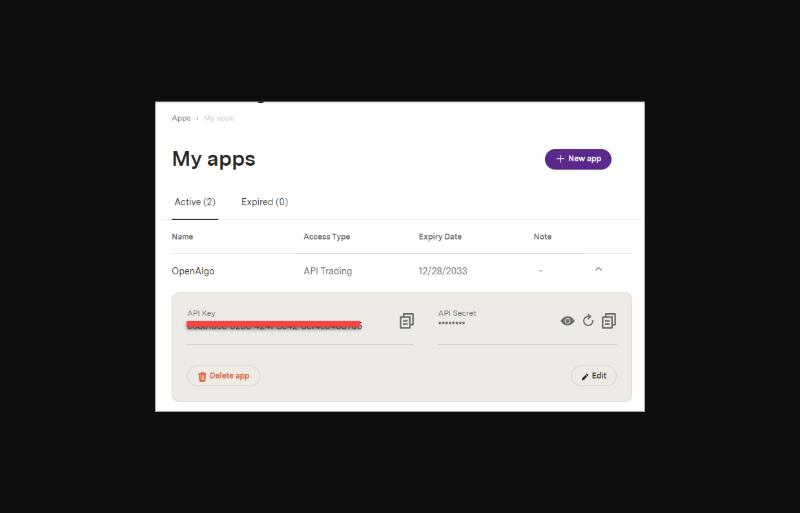
Screenshots show Upstox's own website (taken from OpenAlgo's Upstox guide, personal details removed). Upstox may change its pages - if a field has moved, look for New App under Apps on your Upstox developer account.
Connecting it in TradeMann:
- Enter the client ID and secret (same redirect-URL rule as Zerodha above).
- Click Log in with Upstox and authenticate directly on Upstox's own page; if you're not redirected back automatically, copy the code out of the redirect URL and paste it in.
If it fails:
- Invalid redirect URI - the redirect URI on your Upstox app must match exactly, character for character, the one used at login; or paste the code back by hand.
- Invalid client ID or secret - copy the API key (client ID) and secret again from the app's details page; don't mix them with another app's.
- Orders rejected for an IP reason - register the server's outbound IP on your Upstox app if it offers an IP field (see the static IP note above).
Groww
Before you start: an active Groww trading account with the Trading APIs subscription, and an authenticator app on your phone (Google Authenticator, Authy, ...). Groww's API trades NSE / BSE equity, index options and futures - not commodities (MCX).
Getting your TOTP token:
- Open groww.in/trade-api/api-keys (Groww Cloud → Trade API → API keys) and log in.
- Choose Generate TOTP token. Groww shows a TOTP token (a long text) and a QR code with the TOTP secret (a long text of capital letters and digits) next to it.
- Scan the QR code with your authenticator app (so you can also type its 6-digit code when you sign in), and copy both the token and the secret. Unlike the other Groww key type this one needs no daily approval, and the token does not expire.
Connecting it in TradeMann:
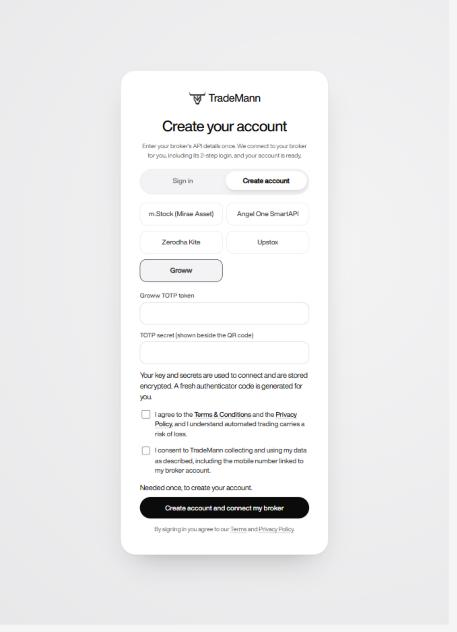
- Create your account (or open Brokers), choose Groww and paste the TOTP token and the TOTP secret. They are stored encrypted.
- TradeMann logs in to Groww by itself - once now, and again every morning, because Groww's access tokens end at 6:00 AM IST. There is nothing to approve or type.
- To sign in later you give your Groww client ID (UCC, shown in the Groww app under your profile) and the current 6-digit code from the same authenticator. Groww gives no mobile number or e-mail through its API, so your profile shows only the client ID and the segments enabled for your account.
If it fails:
- Invalid TOTP / login rejected - copy the token and the secret again from Groww's page; make sure they belong to the same TOTP key and that your phone's clock is correct.
- Orders rejected for an IP reason - register your trading IP at Groww if it asks for one (see the static IP note above).
- An instrument can't be traded - Groww allows MIS (intraday) orders only on instruments it has enabled; the order message says so.
5. Building a strategy
Go to Strategies → New strategy. A strategy is a symbol, a timeframe, entry/exit rules made of indicator blocks, and optional risk settings.
How a condition reads. Every entry / exit condition has three lanes, always in the same order: Left (blue: what you measure, such as RSI(14)), Operator (grey: how it is compared, such as crosses above) and Right (teal: what it is compared with, a number, another indicator or a time). A Reads line under each condition spells it out in plain words and updates as you edit, for example RSI(14, close) crosses above 30.
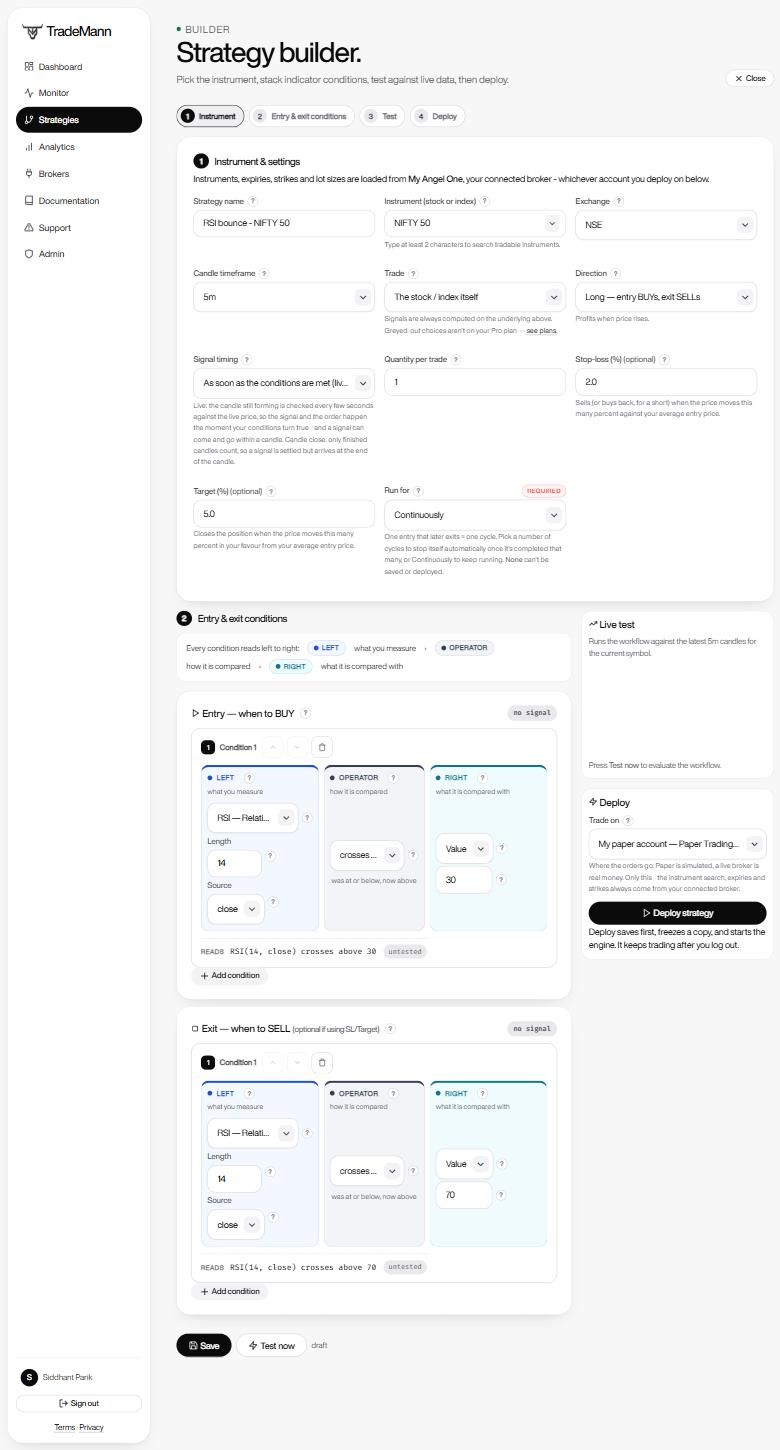
- Instrument - type at least 2 characters to search every tradable symbol.
- Direction - Long (entry buys, exit sells) or Short.
- Signal timing - as soon as the conditions are met (default) or when the candle closes. See How and when the engine acts.
- Run for - required: a number of entry→exit cycles, or Continuously.
- Entry / exit blocks - an indicator, its length and Source (click the ? - see What "Source" means), an operator and a value.
- Test now - evaluates your rules on the latest candles without placing any order.
- Deploy - choose Trade on, then Deploy (or Redeploy to replace a running copy).
Your strategies list
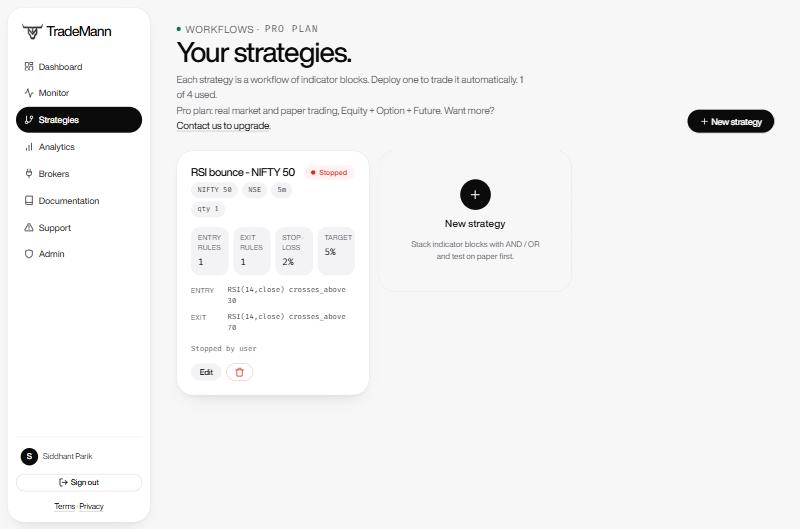
- New strategy - disabled with Limit reached when every slot on your plan is used.
- Live badge for deployed strategies, Draft for ones that are not running.
- Edit opens the builder, Monitor opens its live page, Stop stops it.
Dropdowns, search and loading
Every dropdown in TradeMann is a bordered field with a chevron button on the right. Click it (or focus it and press Enter, Space or ↓) to open a list with a search box; start typing on a focused dropdown and the search opens already filled. Matches are highlighted and counted. If nothing matches you get suggestions instead of an empty list - "did you mean…" for a typo, or the nearest values when you type a number (type 22430 in Strike and the closest strikes are offered). Use ↑/↓ to move, Enter to choose and Esc to close. The instrument field works the same way and searches every tradable symbol.
Expiries, strikes and lot sizes come from your broker's instrument list, which can take a moment the first time each day. While they load, the dropdowns show "Loading…" with a spinner (and the line under them says what is being fetched) instead of sitting empty; if a load fails you get a Retry link. TradeMann also prepares your broker's instrument list in the background when you connect it, when you open the builder and every morning before the market opens, and fetches the expiries for your instrument in advance, so switching Trade to an option, future or commodity is usually instant.
Basic fields
- Instrument - type at least 2 characters to search tradable stocks and indices (from your connected broker's instrument list, or a bundled shortlist on paper).
- Exchange - NSE or BSE.
- Candle timeframe - 1m, 3m, 5m, 15m, 30m, 1h, 1d. Every indicator and signal is computed on candles of this size.
- Trade - the instrument itself, or an option/futures contract on it (see Trading options & futures).
- Direction - Long (default): entry BUYs, exit SELLs, profits when price rises. Short: entry SELLs (opens a short / sells to open an option), exit BUYs to cover, profits when price falls. Your entry/exit condition blocks mean the same thing either way - direction only changes which side each one places.
- Signal timing - As soon as the conditions are met (default): the candle that is still forming is checked every few seconds against the live price, and the order goes out the moment your conditions turn true. When the candle closes: only finished candles count, so a signal is settled but arrives at the end of the candle. Details in How and when the engine acts.
- Quantity - units for an equity strategy, or lots for an option/futures strategy.
- Stop-loss (%) / Target (%) (optional) - a percentage, not a rupee amount: closes the position the moment the price moves this many percent against or in favour of your average entry price, independently of your exit condition blocks. For example, bought at 100 with a stop-loss of 5 and a target of 10 exits at 95 or 110. Leave a field empty for none; otherwise it must be a number above 0 (at most 1,000%, two decimals at most) - the page points out a bad value next to the field and will not save it. For a short, the stop-loss triggers on a price rise and the target on a price fall - the opposite of a long - since that's what's adverse/favourable for a short.
- Run for (required) - how many entry→exit cycles to run before the strategy stops by itself, or Continuously to keep running until you stop it. One entry that later exits (by an exit condition, stop-loss or target) is one cycle. A strategy with no choice cannot be saved or deployed. The count starts again from 0 every time you deploy or redeploy, and the Dashboard and Monitor show progress as Cycle 2 of 5; when the last cycle completes the strategy stops and its status changes.
Entry & exit condition blocks
Each block compares two operands with an operator:
[Indicator] [is greater than / is less than / is greater than or equal to / is less than or equal to / crosses above / crosses below] [Indicator or a fixed value]
- Pick an indicator (see the reference table below) and its parameters, e.g. RSI with length 14 on the close price.
- Pick an operator - see the table below for exactly what each one means and when it fires.
- The right-hand side is either another indicator or a plain number.
- Stack multiple blocks and join them with AND / OR - between every two blocks there are two buttons, one for each; the highlighted one is the active join. Joins are evaluated strictly left to right (no operator precedence) - so A AND B OR C means (A AND B) OR C.
- The Exit group is optional if you're relying only on stop-loss / target.
Live price vs candle price
Most operands - Price(close), RSI, EMA and the rest - are worked out from candles. To build a condition on the live market price itself, pick Price → Live price (LTP) as the operand. It is the broker's last traded price at the moment the engine checks (about every 5 seconds), whichever candle you are on and whatever the strategy's Signal timing.
- Of: Instrument - the live price of the stock, index or commodity the strategy is built on, e.g. Live price crosses above 22,500 on NIFTY.
- Of: Contract - the live price of the option, future or commodity contract you actually trade (the premium, for an option), e.g. Live price >= 140 to exit once your option reaches a premium. For a plain stock it is the same as the instrument. If the broker has no price for the contract right now the row shows no data and the condition stays false - it is never replaced by the underlying's price.
- Use it on either side of a condition: against a number (Live price > 22,500) or against an indicator (Live price crosses above EMA(20)).
- How a cross works. Live price crosses above X fires when the live price is above X and the previous candle's close (or the previous check a few seconds ago) was at or below it.
- With When the candle closes timing, your indicators still wait for the finished candle but an LTP condition is always the live number. Test now, the Dashboard and the Monitor show it as LTP(instrument) or LTP(contract) with its current value.
Time-based entry and exit
Trade at a clock time instead of (or as well as) an indicator. In a block pick Time → Time of day (IST) on the left; the right side becomes a time picker (24-hour, Indian time). Everything else - operators, AND / OR, Test now, the Monitor - works as usual.
The time field is a small card: two labelled tiles, HR and MIN, a 24-hour clock with an IST tag, and the 12-hour equivalent underneath (9:20 AM). Click the hour and type digits - it moves on to the minutes by itself; use ↑ / ↓ to step (Shift = 15 minutes on the minutes). Below the digits a session slider runs from the exchange's open to its close (09:15 to 15:30; MCX 09:00 to 23:30): drag it, or focus it and use the arrow keys, to move through the day. −5 min / +5 min nudge the time, and the quick time chips jump to the market's key times (09:15 Open, 09:30, 12:00, 14:30, 15:15, 15:30 Close; MCX: 09:00 Open to 23:30 Close), which follow the exchange you picked. A time outside the session is allowed and says so under the readout.
| You want | Build it as |
|---|---|
| Enter at 09:20 | Entry: Time of day crosses above 09:20 |
| Exit at 15:15 | Exit: Time of day crosses above 15:15 |
| Only trade inside a window | Entry: RSI < 30 AND Time >= 09:30 AND Time < 14:30 |
| An indicator exit, but always out by 15:15 | Exit: RSI > 70 OR Time crosses above 15:15 |
- "crosses above" a time fires once - from the moment the clock passes it until the end of that candle, so a short delay in the engine cannot make it miss. A strategy still places at most one order per candle.
- "is greater than or equal to" a time stays true for the rest of the day. On its own as an entry it would re-enter after every exit, so use it inside a window (with a matching is less than) or use "crosses above". Remember joins apply strictly left to right; the builder shows "Reads as: ..." under each group.
- It is the clock, not the candle: it works with both Signal timings, and the Monitor shows the reading as a time (12:01:23). Times are Indian time (IST).
- The engine only runs while the market is open (Market hours & data), so a time outside the session (for example 00:00) never fires. Pair it with Run for to stop after a number of daily cycles.
Operators
The first four compare the two sides on the current candle and are true on every candle where the relationship holds. The last two (crosses above / crosses below) compare the current candle against the previous one and are true for exactly one candle - the moment the relationship flips - even if the condition keeps holding afterwards.
| Operator | Meaning | Fires | Example |
|---|---|---|---|
| is greater than | Left is strictly greater than right right now. | Every candle it holds | PRICE(close) > SMA(50) |
| is less than | Left is strictly less than right right now. | Every candle it holds | RSI(14) < 30 |
| is greater than or equal to | Left is greater than, or exactly equal to, right right now. | Every candle it holds | ADX(14) >= 25 |
| is less than or equal to | Left is less than, or exactly equal to, right right now. | Every candle it holds | RSI(14) <= 70 |
| crosses above | Left was at or below right on the previous candle, and is above it on this one - catches the exact moment of a bullish crossover. | Once, on the flip | EMA(9) crosses above EMA(21) |
| crosses below | Left was at or above right on the previous candle, and is below it on this one - catches the exact moment of a bearish crossover. | Once, on the flip | EMA(9) crosses below EMA(21) |
Because crosses above / crosses below only fire on the one candle where the flip happens, they're the right choice for an entry you only want to act on once (e.g. a moving-average crossover) - using is greater than instead would keep matching on every candle the fast average stays above the slow one.
"Crosses" vs "is below": why an exit may not fire
A crosses below 50 exit is not the same as "RSI is below 50". It fires only on the single candle where RSI goes from at or above 50 to below 50. If RSI is already below 50 when the strategy looks - say it dropped through 50 on the same candle your entry was placed, and has stayed below since - there is no new crossing, so that exit stays false and the position is held until the value climbs back over the level and crosses down again.
With live timing a cross is also caught between two checks inside one candle. The engine looks every few seconds; if RSI was 61.57 at one check and 58.46 at the next, that is a cross below 60 and the exit fires right then - even though the last finished candle was already under 60. (With the "when the candle closes" timing only finished candles are compared.)
The condition table on the Dashboard and Monitor shows the previous candle's value under a false cross, and says "already below (was 46.28) - a cross counts only on the candle it passes through" when that is the reason. To exit whenever the value is under a level, use is less than instead (exit: RSI(14) < 50).
6. Indicator reference
16 indicators, computed in pure pandas/numpy - no external dependency required. Live price (LTP) is the odd one out: it is the market's last traded price, not something calculated from candles (see Live price vs candle price).
| Indicator | Parameters | Outputs |
|---|---|---|
| Price | source | value |
| Live price (LTP) | of | value |
| Volume | none | value |
| SMA — Simple Moving Average | length, source | value |
| EMA — Exponential Moving Average | length, source | value |
| WMA — Weighted Moving Average | length, source | value |
| RSI — Relative Strength Index | length, source | value |
| MACD | fast, slow, signal | macd, signal, hist |
| Bollinger Bands | length, std, source | upper, middle, lower |
| ATR — Average True Range | length | value |
| ADX — Average Directional Index | length | value, plus_di, minus_di |
| Stochastic Oscillator | k, d, smooth | k, d |
| VWAP | none | value |
| OBV — On-Balance Volume | none | value |
| ROC — Rate of Change | length, source | value |
| CCI — Commodity Channel Index | length | value |
| SuperTrend | length, multiplier | value |
| Time of day (IST) | none | value |
Indicators with more than one output (MACD, Bollinger Bands, ADX, Stochastic) let you pick which output to use as the operand - e.g. MACD.signal or BBANDS.upper.
7. Trading options, futures & commodities
Set Trade → An option on it (CE / PE), A futures contract on it, or An MCX commodity future in the builder. Signals are still computed on the underlying - only the order goes to the derivative contract.
- For options/futures, pick the underlying stock/index as usual; for a commodity, pick it from a fixed list (Gold, Silver, Crude Oil, Natural Gas, Copper, Zinc, Nickel, Aluminium, Lead and their Mini variants). A commodity can be traded as its future or as an option on it: choose Contract → Call option (CE) or Put option (PE), then the expiry and the strike, exactly as for a stock option. The signals are still computed on the commodity itself; only the order goes to the option. Options are available on Angel One, Zerodha, Upstox, m.Stock and Groww (and on Paper, with a simulated list).
- Switch Trade to the kind you want.
- For options, choose CE (call) or PE (put), then an expiry and a strike. For futures and commodities, just pick an expiry - neither has a strike or right.
- All three load their chain from whichever connection is selected under Trade on.
- Quantity is now a lot count; the lot size comes from the chain.
The chain's source follows your Trade on pick:
- Angel One / Zerodha / Upstox - that broker's real contract master (live strikes/expiries and lot sizes), for options, futures AND commodities. m.Stock and Groww cover options and futures only - neither API has MCX commodity support.
- Commodity orders need the MCX segment switched on in your broker account. Upstox refuses market orders on some MCX contracts, so TradeMann places commodity orders there as a limit order a little through the market (0.5% by default, on a valid price tick) - it fills like a market order but can't slip further than that. Angel One and Zerodha get plain market orders.
- Paper - a deterministic synthetic chain (this month + next 2 expiries, a realistic strike band around a reference spot for options) so you can build and test any of these with no live F&O/MCX feed at all.
8. Testing a strategy
Click Test now in the builder before you deploy.
- Runs your exact entry/exit logic against the last ~400 real candles from the connected broker (or synthetic data on paper without a real feed).
- Shows the current value of every indicator operand, whether each block is currently TRUE, the data source used, and a small candle chart.
- Follows the strategy's Signal timing: live checks the candle still forming at the live price (so a signal can already be TRUE mid-candle), candle close uses finished candles only. Either way it matches what the live engine would do on the same data.
- Costs nothing and places no orders - test as many times as you like before deploying.
9. Deploying a strategy
- Pick a broker connection under Trade on (remembered for next time).
- Click Deploy.
Deploying freezes a snapshot of the strategy - symbol, timeframe, every condition block, risk settings, and (for options) the exact resolved contract - onto a background Deployment. From then on:
- A Celery worker re-evaluates that frozen snapshot every few seconds (or at each candle close, if you chose that timing), whether or not you're logged in or the tab is open.
- Editing the strategy afterwards only changes the draft - it has no effect on the running deployment until you deploy again.
- Redeploying replaces the running snapshot with the current draft and starts a fresh run: the Run for cycle count goes back to 0.
- Redeploying onto a different contract or account (a new strike or expiry, or another broker connection) while the old run still holds a position: a paper position is closed first; a real-broker position makes the redeploy stop with a message - stop the strategy with square-off (or close it with your broker) and redeploy. A position is never carried onto an instrument or account it is not in.
- Deploying to a real broker needs live trading turned on (Profile → Live trading), a plan that allows it and a free strategy slot.
How and when the engine acts
- Signal timing (a setting on every strategy). As soon as the conditions are met (the default): every few seconds the engine checks the candle that is still forming, treating its close as the live price, and places the order the moment your entry or exit conditions turn true. When the candle closes: only finished candles count, so a signal is settled but arrives at the end of the candle (and a little later if your broker's data is delayed - m.Stock can lag by up to a minute).
- The signal and the order are one event. The Dashboard and Monitor show the engine's own latest result, so a signal appears when the engine sees it, together with what was done (for example "BUY 75 NIFTY... @ 142.50 · 11:40:02"). If the page says the engine has not evaluated the strategy recently, a signal you see may not be traded and the worker needs attention.
- One new position per candle. A strategy opens at most one position per candle, so it cannot re-enter on the same candle after exiting. In live timing an exit can come on the same candle as the entry. With the candle-close timing an order is placed at most once per completed candle.
- A live signal can come and go. Because the forming candle's price keeps moving, a condition can be true for a few seconds and then false again before the candle ends. If the order has already been placed it stays placed; use When the candle closes for strategies that should only react to settled candles.
- Prices for orders, stop-loss, target and P&L are live. The price used when it acts is the broker's last traded price (falling back to the last close only if that call fails, and never to a made-up value).
- Enter once, hold, exit, repeat. While a position is open only the exit side (exit conditions, stop-loss, target) is checked.
10. Dashboard
The Dashboard is the home screen for everything that's live: your portfolio, open positions and deployed strategies.
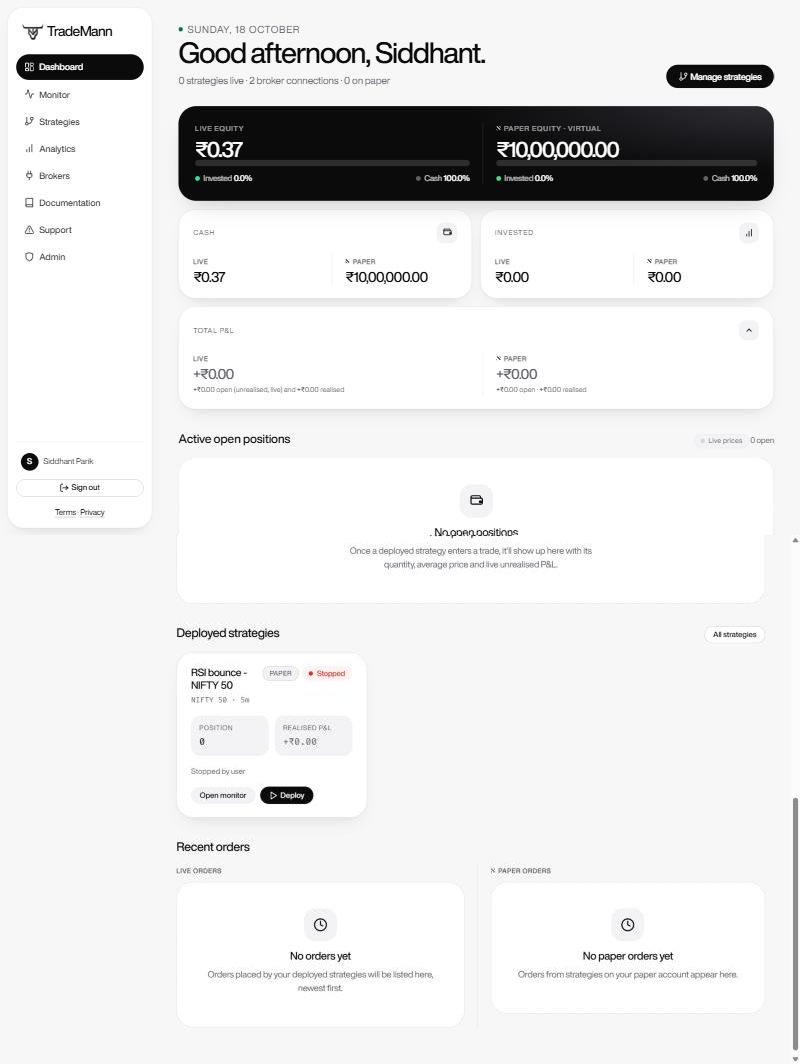
- Equity strip - Live equity (your real brokers) beside Paper equity (virtual money), with how much is invested vs cash.
- Cash and Invested - Live and Paper side by side.
- Total P&L - open plus realised, again Live and Paper in separate columns. See How P&L is calculated.
- Active open positions - every position currently held, with live price, value and unrealised P&L, refreshing every 2 seconds. Each row has an Exit button that closes that position at market right away (see Exiting a single position).
- Deployed strategies - a card per strategy: tagged Live or Paper, position, realised P&L, run progress and last signal.
- Kill switch - stops everything at once (see Stopping a strategy).
Each strategy also has its own page under Monitor in the sidebar, with the full history and equity curve.
- Live and paper are shown side by side, never added together. Once you use the paper account, every figure on the portfolio strip (equity, cash, invested, P&L) has two columns - Live (your real brokers) and Paper (the simulated account, virtual money). Positions, strategies and orders stay in one list, each tagged Live or Paper. The numbers are worked out from your whole order history, so earlier runs, a strategy you moved between paper and a real broker, and even strategies you have since deleted still count - each on the account its orders actually went through. The Analytics page does the same: a Live column and a Paper column on every number, an equity curve for each, and an Account column in the order history.
- Portfolio strip - total equity, cash, invested, open P&L summed across your connected real brokers.
- Active open positions - a dedicated table of every position currently held across all your deployments (even a stopped one that hasn't been squared off yet), separate from the strategy cards below it. Each row shows quantity, average price, the live price, the position's value (price × quantity) and its unrealised P&L with a percentage. These refresh every 2 seconds while the market is open (every 20 seconds when it's shut) without reloading the page, flashing green or red as they move. A long position gains when the price rises ((price − average) × quantity); a short gains when it falls ((average − price) × quantity). The Total equity and Total P&L tiles move with it, and each strategy's Monitor page has the same live price, value and open P&L. A small badge shows the state: Live (broker's last traded price), Delayed (no tick feed - showing the last candle's close) or Market closed. Option, futures and commodity positions are priced on their own contract.
- Deployed strategies table - status, position (shown as a negative quantity for a short, e.g. −5 @ 1,600.00), realised P&L, and the last signal (or the last error, if something went wrong).
- Live indicator values - every operand's current value, the full condition table, and a signal pill (labelled SELL signal for a short strategy's entry, since that's the side it actually places), taken from the engine's own latest evaluation so what you see is what it is acting on (the forming candle at the live price, or the last completed candle if the strategy is set to act on the close). Polls every 5s while the market is open, once a minute while it's shut. A line under it says "Checked every 5s - last check 9s ago" so you can see the engine is working even when nothing is happening.
- Trading vs. data source - a Trading: X badge shows which broker orders actually go to (Paper, or a live one), and a separate data-source note shows which broker the market data/indicator values came from, with a note if it had to fall back (e.g. to your other connected broker, or to simulated data). These can differ - a paper strategy can show live Angel One data while still only ever placing simulated orders - so check the Trading: badge, not the data source, to know where orders will actually land.
- Recent orders - every order the engine has placed, with the reason it fired (e.g. "Entry conditions met", "Stop-loss ₹5"). Once you use the paper account they split into Live orders and Paper orders, side by side.
11. Monitor
Monitor in the sidebar is its own page: one card per deployed strategy, each opening that strategy's live detail.
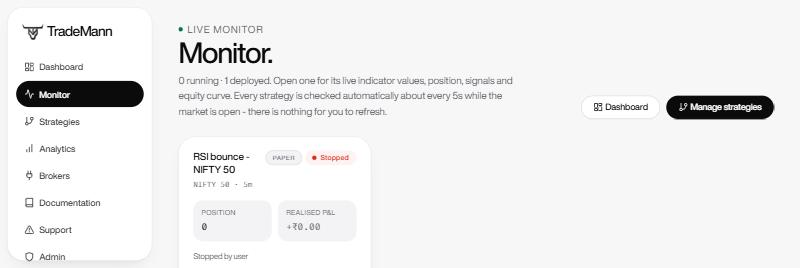
Every strategy is checked automatically about every 5 seconds while the market is open - there is nothing to refresh. The page says so ("Checked every 5s - last check 9s ago") so a quiet strategy reads as working, not stuck.
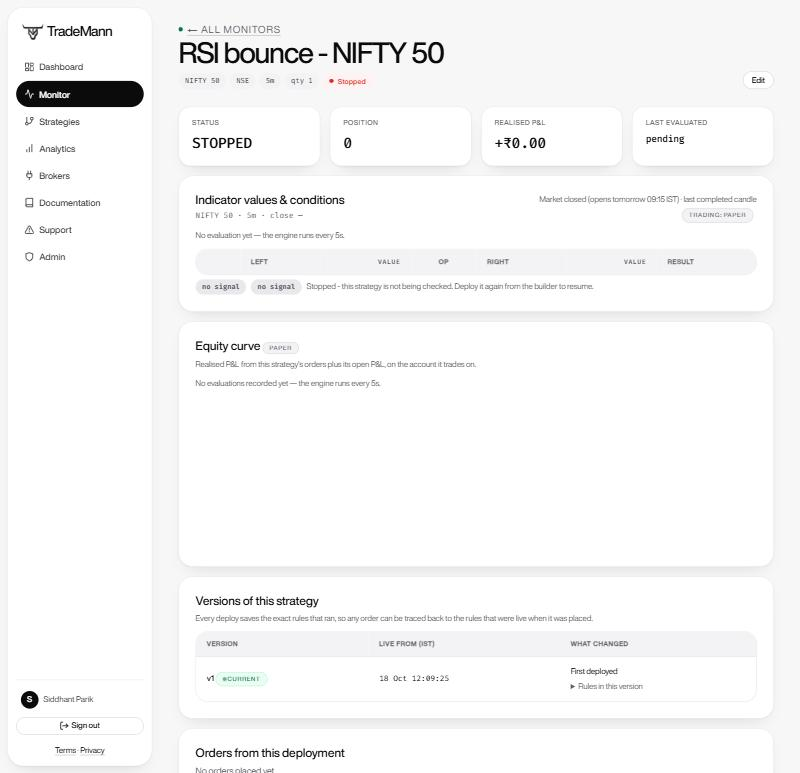
- Exit position closes the position now and keeps the strategy running; Stop & square off (and Edit) - see Stopping a strategy.
- Live price with a badge - Live (broker's last traded price), Delayed or Market closed - next to the position value.
- Open P&L, Realised P&L, Last evaluated and Run - open P&L is the position at the live price, realised is what closed trades made; Cycle 4 of 5 shows progress when you set Run for.
- Indicator values & conditions - each condition with its left value, operator, right value and a true / false result. A false "crosses" shows the previous value and why ("already above (was 36.02)") - see "Crosses" vs "is below".
- Status line - the signal pills, when the engine last checked, and which candle is shown (below).
- Equity curve - this strategy's realised P&L from its orders plus its open P&L, on the account it trades on (tagged Live or Paper).
Reading the status line
- Watching live - no signal - checked 14:16:27 IST - the engine looked at the forming candle at that time and neither entry nor exit was true.
- live candle 14:15-14:20 - updated 14:16:27 IST - with live signal timing, the candle still forming and when its price last moved. With when the candle closes timing it shows the last completed candle instead.
- "The engine has not evaluated this strategy in the last few seconds - signals shown here may not be traded" - the page itself is reading prices, but the background worker has not checked this strategy recently, so a signal you see may not be traded. When you run TradeMann yourself, check the engine status (worker / beat); otherwise raise a support ticket.
- "Data unavailable ... backing off" - the broker's data call was refused or rate-limited. A live strategy then waits for real data instead of trading on invented numbers (see Market hours & data).
Below the curve, Orders from this deployment lists every order with the reason it fired ("Entry: conditions met", "Stop-loss ₹5").
Why was this order placed? / Versions of this strategy
Open Why was this placed? on any order to see the conditions behind it: each one with a tick or a cross, the two numbers it compared, and, for a "crosses" condition, the values from the previous candle and the previous check, which is what a cross is judged on. The small v3 next to an order is the version of your strategy that was running. Every time you deploy or redeploy, the exact rules are saved as a new version and the Versions of this strategy card lists what changed each time, so you can always tell which rules were live when an order went out, even after editing the strategy several times in a day. Orders placed before this existed show no explanation.
12. Analytics dashboard
Go to Analytics in the sidebar for performance across every strategy combined, or drilled into one.
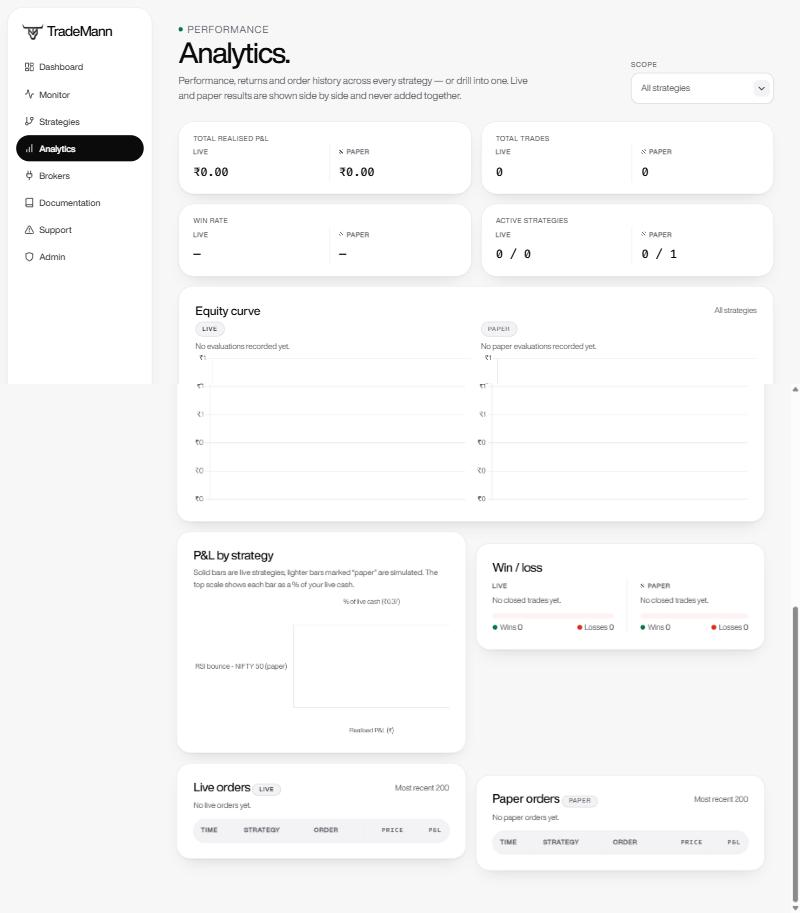
- Scope - all strategies, or any single one. It re-scopes every chart and number.
- Summary cards - realised P&L, trades, win rate and active strategies, Live beside Paper.
- Equity curve - one for Live and one for Paper, each on its own scale.
- P&L by strategy - solid bars are live strategies, lighter bars marked paper are simulated. The top scale shows each bar as a percentage of your live cash so a rupee result is easy to size against your account.
- Win / loss - how many closed trades were profitable, per account.
- Live orders and Paper orders - the most recent 200 of each, with the P&L every closing order realised.
- Scope selector - "All strategies (combined)" or any single strategy. Switching it re-scopes every chart and number on the page.
- Summary cards - total realised P&L, total closed trades, win rate, and how many strategies are currently active.
- Equity curve - each deployment's own running equity, summed onto one shared timeline (a deployment holds its last known value between its own ticks). With a single strategy selected this is just that strategy's own curve.
- P&L by strategy - a bar per strategy (green = profit, red = loss), shown only in the combined view. The scale along the top shows each bar as a percentage of your live cash.
- Win / loss - how many closed trades were profitable, with a share bar. A trade only counts once it's been closed - an open position isn't a win or a loss yet.
- Order history - the most recent 200 orders in scope - Live orders and Paper orders in separate tables - with the exact P&L each closing order realised (entries show no P&L - they open a position, they don't close one).
13. How P&L is calculated
So the numbers on the Dashboard, Monitor and Analytics match what your broker's own app shows - and so you can see why they sometimes differ by a little.
- From your whole order history, per account. Realised P&L is added up from the orders themselves, on the account each order went through - Live and Paper are never added together. Earlier runs, a strategy you moved between paper and a real broker, and strategies you have since deleted all still count.
- Average price is the real fill. The engine records a market order at the quote it saw, then a background job reconciles it with your broker's order book and replaces it with the actual fill price. That is why the average buy price and P&L match the broker once the fill is in (usually within seconds).
- Realised is booked on the order that closes a position: long = (sell price - average buy price) × quantity; short = (average sell price - buy price) × quantity.
- Open (unrealised) is the position at the broker's last traded price: long = (price - average) × quantity. Ticks that are clearly wrong (a price 10× the last one, or zero) are ignored, never plotted or used.
- Invested is the cost of what you currently hold; cash and equity come from the broker (for m.Stock they are derived from the positions held, because its own "utilised" figure includes charges and blocked margin).
Why your broker's number can differ
- Charges. TradeMann's P&L is trade profit and loss from fills; brokerage, taxes and other charges are not deducted.
- Trades TradeMann did not place (you traded by hand in the broker app) are in the broker's figures but not in the strategy's.
- A fill that has not reconciled yet - it corrects itself shortly.
If a figure stays different after a minute, raise a ticket and include the strategy and the broker's number.
14. Stopping a strategy
Stop a single strategy
From its Monitor page, click Stop & square off. You'll be asked to confirm; check the square-off box to also close any open position at market before it stops. Without it, the strategy simply stops taking new entries/exits and any open position is left alone.
Exiting a single position
Every row in the Dashboard's Active open positions table has an Exit button, and the strategy's Monitor page has Exit position while it holds something. After you confirm, TradeMann closes that one position at market now - a SELL for a long, a BUY to cover a short - and records it as "Manual exit" with its realised P&L.
- The strategy keeps running. It will not enter again on the candle you closed on, but it may on a later candle if its entry conditions are true. To stop it as well, use Stop & square off.
- On a real broker it places a real order (the confirmation says so); on the paper account it is simulated. If the broker rejects it, the position is left exactly as it was and you are told why.
- It works on a stopped strategy that still holds a position too - that is how to clear a position you no longer want to track.
- A manual exit does not count as a completed cycle for Run for.
- If a row turns out to be a position left over from an earlier run on another contract or account (see FAQ), Exit settles it where it really is instead of selling anything on the current contract.
A strategy that stops by itself
If you set Run for to a number of cycles, the strategy stops on its own when the last cycle completes (it will not start a new one). Its status changes from Live back to Draft; Deploy it again to run another set - the count starts from 0.
Kill switch - stop everything at once
The Dashboard shows a Kill switch button whenever any of your strategies are live. One click, one confirmation, and it:
- Halts every one of your running strategies immediately - no more entries or exits will be placed by any of them.
- Squares off every open position it finds, at market, right away - a real SELL on whatever's actually held (the option/futures contract for a derivative strategy, the underlying otherwise).
15. Market hours & data
- The engine trades only while your strategy's market is open: equities, futures and options follow the NSE/BSE session (09:15–15:30 IST), MCX commodities run from 09:00 until the evening close (23:30 IST; 23:55 while the US is on daylight-saving time) - Monday–Friday. Outside its session a strategy evaluates nothing and places no orders, so a commodity strategy keeps working after 15:30.
- When the market is shut, the dashboard shows the values as of the last close, labelled with when the next session opens.
- Market data always comes from a deployment's own broker connection first. If that call fails (a rate limit, a dropped session), it falls back to your other connected real broker, with a note explaining which happened. A strategy that trades through a real broker never runs on simulated data - if no real data is available it waits and says so, instead of trading on invented numbers. Simulated candles appear only for paper-only users with no real feed connected, clearly labelled.
- Prices are vetted before they are used: a tick that jumps far out of line with the last one (an option reading 803 when it was about 80) or reads zero is ignored, so it can neither trigger an order nor draw a spike on your equity curve.
- Each broker's rate limits are respected across the whole platform (for Angel One, candle requests are paced at about 2 a second); you may briefly see "backing off" instead of an error.
- Indicator values use the same candles and timing as the engine, so the dashboard, the builder's "Test now", and the live engine always agree.
16. Support tickets
Hit an error, or need a hand with anything? Go to Support → Raise a ticket.
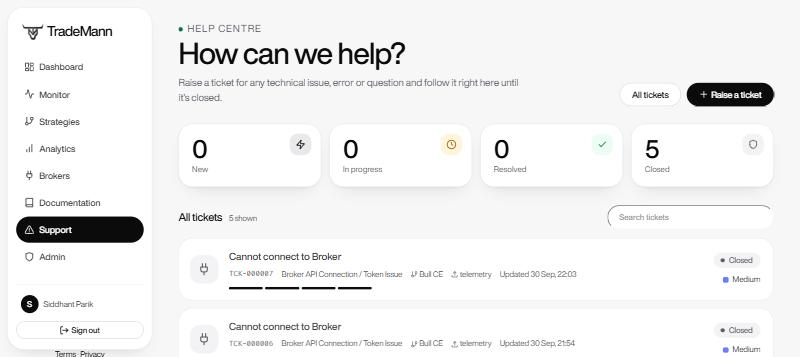
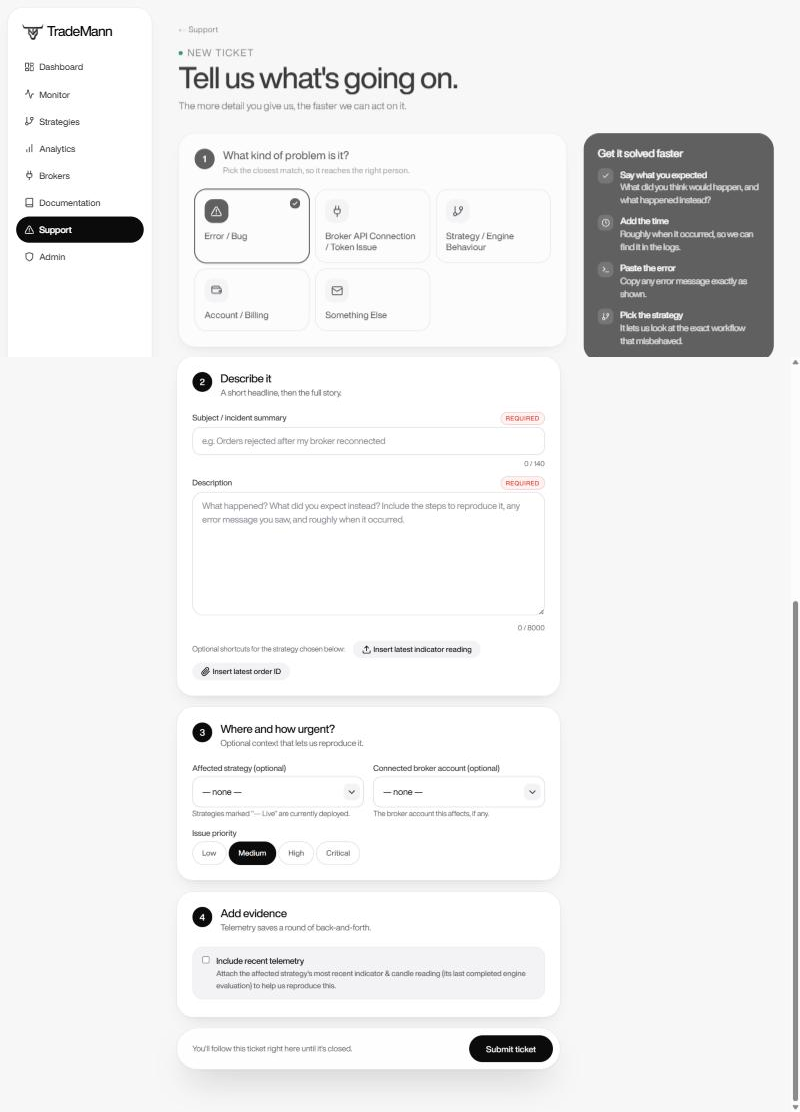
- Pick the category that fits best so it reaches the right person.
- Describe it - a subject, then what happened, what you expected and any error message. The two shortcut buttons paste your latest indicator reading or order id.
- Add context - the affected strategy and broker account, and a priority (Low / Medium / High / Critical). Press Submit ticket.
- Every ticket gets a short reference number (TCK-000042) so it's easy to refer to.
- Pick an incident category (error/bug, broker API connection / token issue, strategy / engine behaviour, account / billing, or other), optionally the affected strategy (options marked "— Live" are currently deployed) and the connected broker account it's about, and an issue priority (Low / Medium / High / Critical).
- Write what happened in the Description box: what you did, what you expected instead, any error message, and roughly when it occurred. Two optional shortcuts, Insert latest indicator reading and Insert latest order ID, paste the selected strategy's most recent indicator/candle reading or order id into it - both read-only, scoped to your own strategies.
- Tick Include recent telemetry to attach the affected strategy's most recent indicator & candle reading (its last completed engine evaluation) automatically - on top of anything you paste into the Description box yourself (the two quick-insert shortcuts above cover most of what a file attachment would have).
- Status moves through New → In Progress (or On Hold, if we're waiting on something) → Resolved / Closed. Every reply and every status or priority change appears on the ticket's own page as a single chronological activity timeline, so you can see exactly what happened and when.
- Closing a ticket needs a closing note. On a ticket you raised, write what fixed it (or why it's no longer needed) in the Closing note box - it's required, at least 5 characters - and press Close ticket. The note is saved on the ticket, shown in its activity and sent to the support team. If support marks it Resolved you can confirm with a closing note, or push back with Not fixed: reopen. A closed ticket can be reopened (with an optional note) if the problem comes back.
- Support in the sidebar is your help centre: the tiles at the top count your tickets by status and work as filters, there's a search box, and each ticket shows a small progress bar from New to Closed.
- Raising a ticket also emails the support inbox with the full ticket details, so it's never missed even if no one is watching the dashboard - and you get your own confirmation email with the same details, for your records.
18. Safety & risk
- Always build and test a strategy on Paper Trading first.
- Start any live strategy with the smallest quantity / lot size your broker allows.
- Use a stop-loss on every live strategy as a backstop, even if you also have exit condition blocks.
- A short strategy (see Building a strategy) has different, often larger, risk than a long one - a short option (writing) in particular has no capped downside the way buying an option does.
- Know where the Kill switch is before you deploy anything live.
- Fills are recorded at the engine's reference price and reconciled only via the broker's own order id - there's no live fill-by-fill polling yet.
- Sign-in is protected against guessing. Five wrong attempts on the same broker account from the same address lock that account for a minute, then five minutes, then half an hour if it keeps happening; wrong one-time codes, repeated "Resend code" requests and floods of attempts from one address are limited in the same way, and a correct sign-in clears the count. Every failed sign-in shows the same message, so nobody can use the form to find out which accounts exist.
19. FAQ & troubleshooting
Still stuck? Raise a support ticket for any technical issue or error - it's tracked and you'll get a reply on the ticket's own page.
"Too many attempts. Please wait ..."
Sign-in is rate-limited to stop password and code guessing. Too many wrong passwords or codes for your broker account (or too many sign-in attempts from your network, or too many one-time codes asked for in an hour) pauses sign-in for a short time: 1 minute the first time, 5 minutes the next, then 30 minutes. Wait for the time shown and try again with the right details - the page tells you how long. A wrong guess by someone else on a different network will not lock you out of your own sign-in, and signing in successfully resets the count. If you cannot get in, raise a support ticket and the team can clear the lock-out.
My strategy is deployed but nothing happens
Check the market is open (see Market hours) and that your broker connection's status is "connected", not "needs re-auth". The Monitor page's last error line explains most failures directly.
Orders get rejected with an IP address error
If the Monitor page's last error mentions "Primary and Secondary IP Address are not matching", that's m.Stock specifically refusing requests from an unrecognised IP - see the callout under m.Stock (Mirae Asset) above for exactly what to update and where.
Indicator values look wrong / "data unavailable" / "simulated data"
The connected broker's real feed wasn't reachable right now (rate limit, expired session). A live strategy never runs on simulated numbers: it keeps its last good state, shows data unavailable and tries again on the next check. Sign in or re-authenticate the broker; if it is a rate limit (Angel One) it clears itself within about a minute, and a second connected broker works as a backup. You only see "simulated" values on a paper-only account with no real feed.
The Monitor says "the engine has not evaluated this strategy"
The page can read prices on its own, but the background worker has not checked this strategy in the last few seconds, so a signal you see may not be traded. Wait a few seconds after a restart; if it stays, raise a support ticket.
The Monitor says "the engine tried to check this strategy but could not"
The worker is checking your strategy every few seconds, but each check ends in an error, so nothing is evaluated and no order is placed. The message says why: for example Broker connection is not healthy (your broker session ended or was refused - reconnect it on the Brokers page), or No live price right now (a short broker or market-data hiccup that clears by itself). The same text appears under the strategy on Dashboard. TradeMann tries a failed check again within a second or two on its own, and the message goes away by itself as soon as a check works - or as soon as you reconnect the broker.
My strategy stopped before I stopped it
Check Run for: with a number of cycles the strategy stops by itself when that many entry→exit cycles have completed (one cycle = one entry that later exits). Each deploy or redeploy starts the count from 0 again; choose Continuously to run until you stop it. A strategy also stops if you stopped it, hit the Kill switch, or your plan lapsed.
The profit or average price differs from my broker's app
See How P&L is calculated: TradeMann works from fills reconciled with your broker, excludes brokerage and taxes, and only counts trades the strategy placed. A just-placed order is corrected to the real fill price within moments.
Every strategy shows "Checked every 5s" - is that normal?
Yes. It means the engine looks at every running strategy about every 5 seconds while the market is open. Between checks nothing is lost: a cross that happened between two checks is still caught.
"That account already belongs to a TradeMann user" / I can't remove my broker
A broker account identifies exactly one TradeMann user, so it can't be connected by a second user - sign in with it from the sign-in page instead. And if you created your account with your demat account, that broker account is your sign-in, so Remove isn't offered for it; use Disconnect / Reconnect instead, or create a new TradeMann account with a different broker account.
A position is shown that I did not open / is on the wrong contract
Every open position is backed by the strategy's own orders. If an older run's position was left on a different contract or account (a redeploy used to keep it while the contract or broker changed underneath), TradeMann now notices that the orders put it elsewhere and never sells it: the engine drops the record - closing it on the paper account at its entry price, or, on a real broker, only clearing TradeMann's record without placing any order - and says so under Last signal ("Dropped a position carried over from an earlier run..."). If it was on a real account, check that position with your broker.
If instead you closed a position directly in your broker's own app (not through TradeMann) and it still shows as open here: click Exit position on it anyway. TradeMann asks your broker, fresh, whether it really still holds this - if the broker confirms it does not, the record is cleared with no order placed (you'll see "was already closed at your broker"); it never blindly re-sends a closing order, which would open a stray position in the wrong direction instead.
My time-based entry or exit did not fire
Check the time is inside the market session (equities 09:15-15:30 IST, MCX until 23:30) and is in Indian time. A crosses above time fires only once, from the moment the clock passes it until the end of that candle; if the strategy was deployed or the engine started after that, it will not fire until the next day. The Monitor shows the clock reading and says "the time has already passed" or "waiting for the clock to reach it". See Time-based entry and exit.
One exit condition is TRUE but the strategy did not exit
Look at how the blocks are joined. Joins apply strictly left to right with no AND-before-OR precedence, so 1 OR 2 OR 3 OR 4 AND 5 means (1 OR 2 OR 3 OR 4) AND 5: block 5 must also be true. If block 1 is TRUE but block 5 is false, the whole exit is false. The builder shows "Reads as: (1 OR 2 OR 3 OR 4) AND 5" under each group, and the Monitor and Dashboard add a row under the conditions saying what the group needs and which AND-joined block is holding it back. If any single condition should be enough, join them all with OR.
The exit condition looks true but my position is still open
Look at the operator. crosses below / crosses above fire on the one candle the value passes through the level; if it was already past the level on the candle the position was entered (or the engine was off then), there's no new crossing, so the exit stays false even though the value is beyond the level. The Monitor's condition table shows the previous value and says so. See "Crosses" vs "is below" - switch the exit to is less than / is greater than for a level-based exit. Meanwhile you can always close the position by stopping the strategy with square-off checked.
What does "Source" mean on an indicator?
Every candle has four prices: open (where it started), high (its highest), low (its lowest) and close (where it ended - or the live price while it is still forming). Source is simply which of those the indicator is calculated from. An RSI with source close works on closing prices; with high it works on each candle's high. Close is the standard choice and the default, so leave it alone unless you specifically want something else. (Not to be confused with the Data source shown when you test or monitor a strategy, which says which broker the price data came from.) Click the ? next to the field in the builder for the same explanation.
My entry came a minute after the candle closed
That happens when the strategy's Signal timing is When the candle closes: the engine then acts only on completed candles, and the broker's data for a just-closed candle can take up to a minute to appear (m.Stock in particular). Switch the timing to As soon as the conditions are met to trade the moment they turn true.
A signal showed for a few seconds and then disappeared
With live timing the forming candle's price keeps moving, so a condition can be true for a moment and false again. If an order was placed in that moment it stays placed (see the order list); choose When the candle closes if you only want settled signals.
The price on my open position says "Delayed"
The broker didn't return a last traded price right now, so TradeMann is showing the last candle's close (or, if that fails too, the engine's last stored price). It switches back to Live by itself as soon as the broker answers - check the connection isn't "needs re-auth" if it stays delayed.
I keep seeing the same order placed repeatedly
The engine opens at most one new position per candle per strategy, and checks your real broker position before every entry - it should never duplicate. If you still see this, stop the strategy via the Kill switch or its own Stop button and get in touch.
Can I close a position without stopping the strategy?
Yes - press Exit on its row in the Dashboard's Active open positions table (or Exit position on the Monitor page). It closes just that position at market and the strategy keeps running. See Exiting a single position.
Do deleted accounts keep trading?
No. Deleting a user's row (or the account no longer existing) logs that session out on its very next request - but any deployment keeps running independently of whether its owner is logged in, exactly as designed. Stop it explicitly if you want it to actually halt.